Make PDF Darker for Printing
PDF prints too light? Darken faded text, improve contrast, clean up scanned documents and get a clearer, print-ready PDF — processed in your browser.
- No signup
- No watermark
- Processed in your browser
- Upload
- Enhance
- Compare & download
or drop a PDF here — one file at a time, up to 50 MB and 100 pages
Free to try • No signup required • Your file never leaves your device
Advanced settings
Before and after
A sample faded document, enhanced by the same engine that will process your file. Drag the slider.
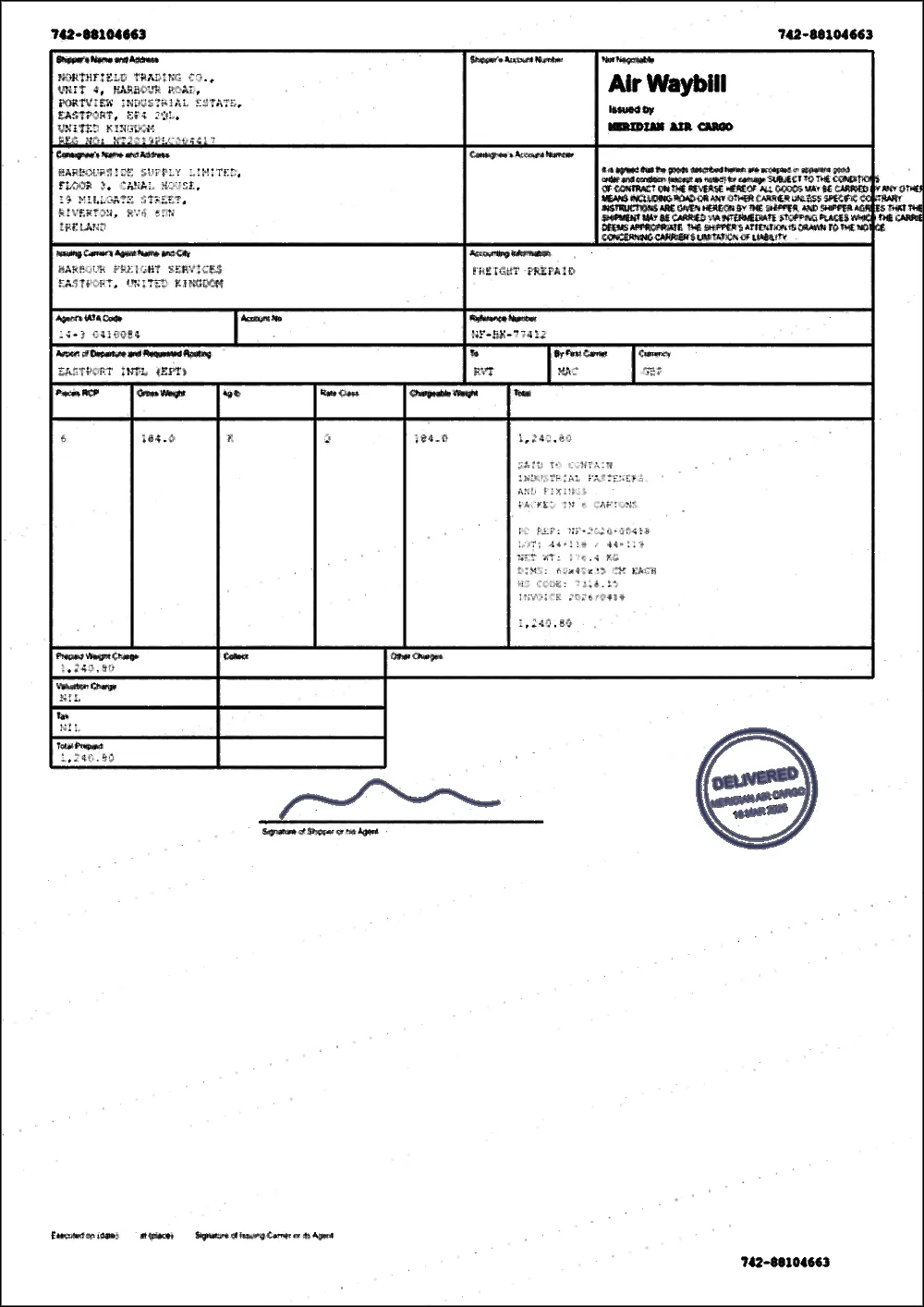 FadedEnhanced
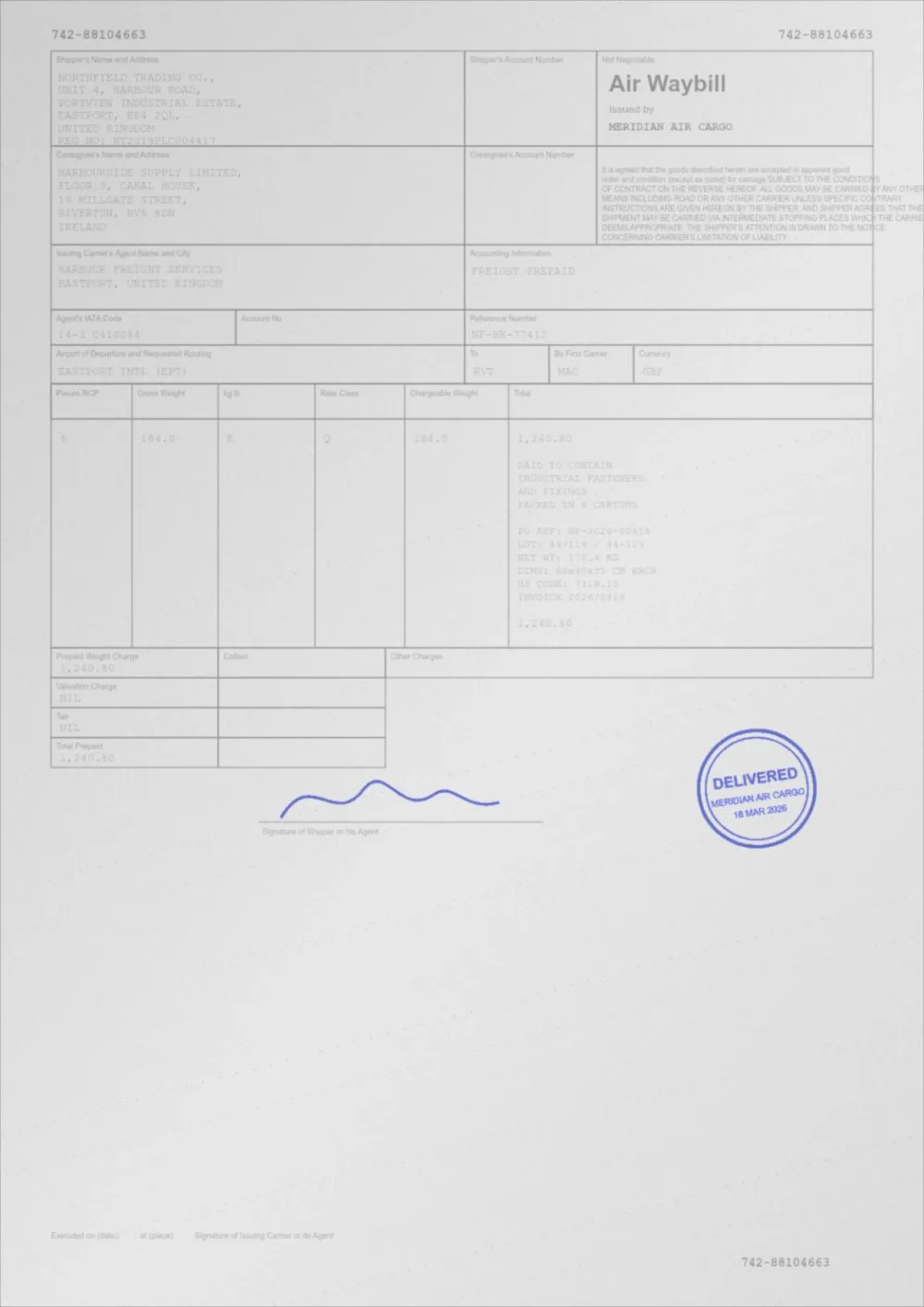
- Grey text is pushed towards black.
- The grey paper cast is flattened towards white.
- Layout, stamps and signatures stay where they were.
What can you fix?
A screen is backlit, so grey text on light grey paper still looks like contrast. Paper only reflects the light in the room, so the same page prints faint and hard to read. Pick the problem you have.
- PDF prints too lightLooks fine on screen, comes out of the printer faint. Darken the file instead of fighting the printer.Open
- Faded PDF textOld photocopies, thermal receipts and carbon copies where the ink has greyed out.Open
- Low PDF contrastInk and paper sit too close together. Widen the gap so the page reads clearly.Open
- Grey scanned PDFScans whose paper came out grey and whose text is weak.Open
- Blurry PDFSoft, smeared text made crisper and easier to read. It cannot invent detail that was never scanned.Open
- Noisy scanned PDFIsolated dust and specks cleared from the paper. Strokes and thin lines are left as they were.Open
- Dark or uneven scanShadows, bright centres and dark corners from phones and book spines, flattened without touching the ink.Open
- Hard-to-read documentsNot sure what is wrong? The enhancer has every control in one place.Open
Core tools
One engine, opened in the mode that suits the job. Every tool runs in your browser and every setting can be changed after you upload.
Darken & print
Stronger ink and cleaner paper for pages that come out of the printer faint.
- Darken PDFAuto mode measures each page and darkens only as much as it needs.Open
- Make PDF Print ReadyA preset tuned for paper: darker ink, cleaner background, firmer small type.Open
- PDF Print OptimizerMeasures your PDF, explains what will print faint, and recommends settings.Open
- Darken PDF for PrintingOpens in Print Ready mode: stronger text, whiter paper, sharper small type.Open
Scans
Clean, whiten and read pages that started life on a scanner.
- OCR Scanned PDFCleans each scanned page, reads the text in your browser and makes the PDF searchable.Open
- Enhance Scanned PDFLighting correction, despeckling, darker ink and sharper edges in the right order.Open
- Clean Scanned PDFWhitens grey backgrounds and removes speckle and shadows.Open
- Whiten PDF BackgroundTurns grey or cream scanned paper white and leaves dark ink exactly as it was.Open
Contrast & clarity
Every control in one place, plus tone, sharpness and colour fixes for pages that are hard to read rather than just light.
- PDF EnhancerEvery control in one place: darkness, contrast, brightness, background, sharpening, noise.Open
- PDF Contrast EnhancerFour strengths from Light to Print Ready, plus manual contrast and brightness.Open
- Brighten PDFLifts mid-tones and whitens dull paper while keeping the ink solid.Open
- Fix Blurry PDFSharpens soft text and lifts contrast, with honest limits on what blur can be fixed.Open
- Grayscale PDFConverts colour to grey for mono printing, changing nothing else by default.Open
- Black & White PDFPure black and white with an adjustable cut-off, for crisp text. Not for photos or shading.Open
- Fix Faded PDFDarken Text mode favours the ink and leaves the paper alone.Open
- Sharpen PDFFirms up soft scanned text with a halo-limited sharpen. Tone and colour stay as they are.Open
Why DarkenMyPDF
Built for one job
Faded, low-contrast, scanned and too-light PDFs. It is not a drawer of unrelated PDF utilities.
It measures before it adjusts
Ink level, paper level and tonal range are measured per page, so a page that is already fine is left almost untouched.
Compare before you download
A slider shows the original and the enhanced page, both rendered from the real PDFs.
Real text stays real
Pages made only of text and vector graphics are darkened by rewriting colour instructions, not by turning them into pictures.
Your file stays on your device
There is no upload endpoint. Everything runs inside your browser tab.
Free, no account
No signup and no watermark. Current limits are 50 MB and 100 pages per file.
Not every PDF should become an image
Many “darken PDF” tools photograph every page and hand back a picture. That makes text soft when zoomed, breaks copy and search, and can multiply the file size. DarkenMyPDF treats the two kinds of page differently.
Text and vector pages
On a page made only of text and vector graphics, the colour instructions inside the page are rewritten. The letters stay letters, so text stays selectable, searchable and sharp at any zoom, and the file stays about the size it was.
Scanned and image pages
A scan is already a picture, so it is enhanced as one and written back as a new image. The same applies to any page that contains a picture, even a logo. An invisible OCR text layer on a scan is not carried over; to add a fresh one, use OCR a scanned PDF.
How it works
- 1
Upload
Pick a PDF or drop it on the page. It stays on your device.
- 2
Analyze
Each page is measured: ink, paper, tonal range and lighting.
- 3
Enhance
Only the correction each page needs is applied.
- 4
Compare
Check the original against the result with the slider.
- 5
Download
Save a new PDF. Your original file is never modified.
Your files stay on your device
DarkenMyPDF has no upload endpoint. Reading the PDF, rendering the pages, measuring them, enhancing them and writing the new file all happen inside your browser tab, using your own device’s processor.
That is not a policy promise — it is how the application is built. There is no server that receives your document, so there is nothing to store, log, train on or delete. The page does load its code and a PDF rendering library from this site, and if you accept analytics it counts page views and basic usage events (such as “a download happened”); none of it includes your file, its name or its contents.
What people use it for
- Scanned documents
- Old documents
- Forms
- Receipts
- Contracts
- Photocopies
- Invoices
- Handwritten notes
- Printed documents
- Anything that prints too light
Guides
Why documents look faded, what each control really does, and how to get a clean print.
- Why Does My PDF Look Faded?Four different things make a PDF look faded or light, and each needs a different fix. How to tell them apart in two minutes, and how to fix a light PDF.
- How to Darken a PDF: Six MethodsSix ways to darken a PDF, from fixing the source to re-scanning to a browser tool, with what each one costs you and when to use it.
- PDF Brightness vs ContrastBrightness and contrast are not interchangeable. Measured results on a real faded scan show which one rescues a faint PDF and which one makes it worse.
- How to Make a Scanned PDF SearchableHow OCR makes a scanned PDF searchable, what decides its accuracy, why cleaning the scan first helps, and how to do it without uploading your document.
- Inkjet Printing Too Light? What to CheckAn inkjet that prints faint can have a clogged head, a wrong paper setting, economy mode, low ink, or a faint file. A step-by-step way to find which it is.
- How to Prepare a PDF for PrintingA practical checklist for getting a clean print: page size and scaling, margins, text darkness, background, colour or greyscale, image resolution, and a test page.
Frequently asked questions
Can I darken a PDF for printing?
Yes. Upload the file and download a darker copy. For paper output, choose Print Ready under Advanced settings, or start from the dedicated Darken PDF for printing page, which opens in that mode.
Can I make faded PDF text darker?
Yes. Each page is measured and the ink is pulled towards black while the paper is pushed towards white. If a stroke has faded to exactly the colour of the paper, nothing can recover it, but most faded documents still hold enough difference to bring back. See Fix a faded PDF.
Can I improve PDF contrast?
Yes. The Contrast slider and the High Contrast mode widen the gap between ink and paper. The PDF contrast enhancer page starts in High Contrast mode.
Can I enhance a scanned PDF?
Yes. Scanned pages are rendered, corrected for uneven lighting, despeckled, re-toned and sharpened, then written into a new PDF. It changes how a scan looks and prints; it does not straighten pages. To make the text searchable too, see OCR a scanned PDF; for the cleaning alone, see Enhance a scanned PDF.
Does DarkenMyPDF upload my PDF?
No. Nothing is uploaded. The whole pipeline — reading, rendering, measuring, enhancing and writing the new PDF — runs inside your browser tab. There is no server that receives your document, so there is nothing to store, log or delete. Read the privacy policy for the specifics.
Will my PDF text remain selectable?
On pages made only of text and vector graphics, yes: the text stays selectable, searchable and sharp at any zoom. A page that contains any picture, including a logo, is enhanced as an image, so its text is no longer selectable. An existing OCR text layer on a scan is not carried over; OCR a scanned PDF adds a fresh one.
Can I use DarkenMyPDF on mobile?
Yes, on modern iPhone, iPad and Android browsers. Processing happens on the device, so a very large scan may take longer on a phone than on a laptop, and extremely large files may run out of memory — the tool tells you if that happens instead of failing silently.
Can I darken a PDF without Adobe or installing anything?
Yes. DarkenMyPDF runs in your browser, so there is nothing to download or install, no Adobe account is needed and there is no signup. Open the page, choose the PDF, check the before and after preview and download the darker copy. The file is processed on your device and is never uploaded.
How do I make a signature darker on a PDF?
A signature is part of the page, so it is darkened along with everything else. On a scan, the tone adjustment pulls the faint ink towards black. Coloured signatures keep their hue and are darkened more gently, so they do not turn into a black blob. If a signature was added as a separate pale stamp in an editor, the cleanest fix is to sign again in black at the source.
How do I make a PDF from my scanner darker?
There are two routes. If you can scan again, use 300 DPI in greyscale and avoid economy or fast profiles. If you cannot, upload the PDF here: each scanned page is measured, corrected for uneven lighting and re-toned, and you download a new, darker PDF. See Make Scanned PDF Darker and how to darken a scanned PDF.
Is there a free online PDF darkener?
Yes, DarkenMyPDF is one. It is free, has no watermark and no signup, and it works in your browser on a computer, phone or tablet. It darkens faint ink and clears grey paper so a PDF reads and prints clearly. It does not turn a document into a dark-background “night mode” version; for that, see how to view a PDF in dark mode.
How do I darken handwriting or pencil notes in a PDF?
Handwriting is part of the page, so darkening the file darkens it. Pencil, ballpoint and fountain pen behave differently, and thin strokes need a lighter touch than printed text. The page on darkening handwriting in a PDF explains which setting to change for each, and darken a signature in a PDF covers stamps and initials.
What types of PDF work best?
Faint scans, photocopies of photocopies, thermal receipts and digital PDFs whose text was set in light grey benefit the most. Pages that are already solid black on white are left almost untouched, and dark-background pages are protected from being darkened. It cannot rebuild detail a scan never captured.
Ready to print it clearly?
Pick a PDF and compare the result before you download it. No signup, no watermark.
Upload PDF