Darken a PDF for printing
Printing is where light PDFs fall apart. A monitor emits light and flatters weak contrast; paper reflects it and forgives nothing. A page that looked acceptable on screen can come out of the tray looking like a fax from 1998.
This page uses the Print Ready preset: stronger text darkening, a firmer push of the paper towards white, and a touch of edge sharpening so small type still holds its shape at 10pt.
Make a print-ready PDF
Starts in Print Ready mode. Change the mode below if you want something gentler.
- Upload
- Enhance
- Compare & download
or drop a PDF here — one file at a time, up to 50 MB and 100 pages
Free to try • No signup required • Your file never leaves your device
Advanced settings
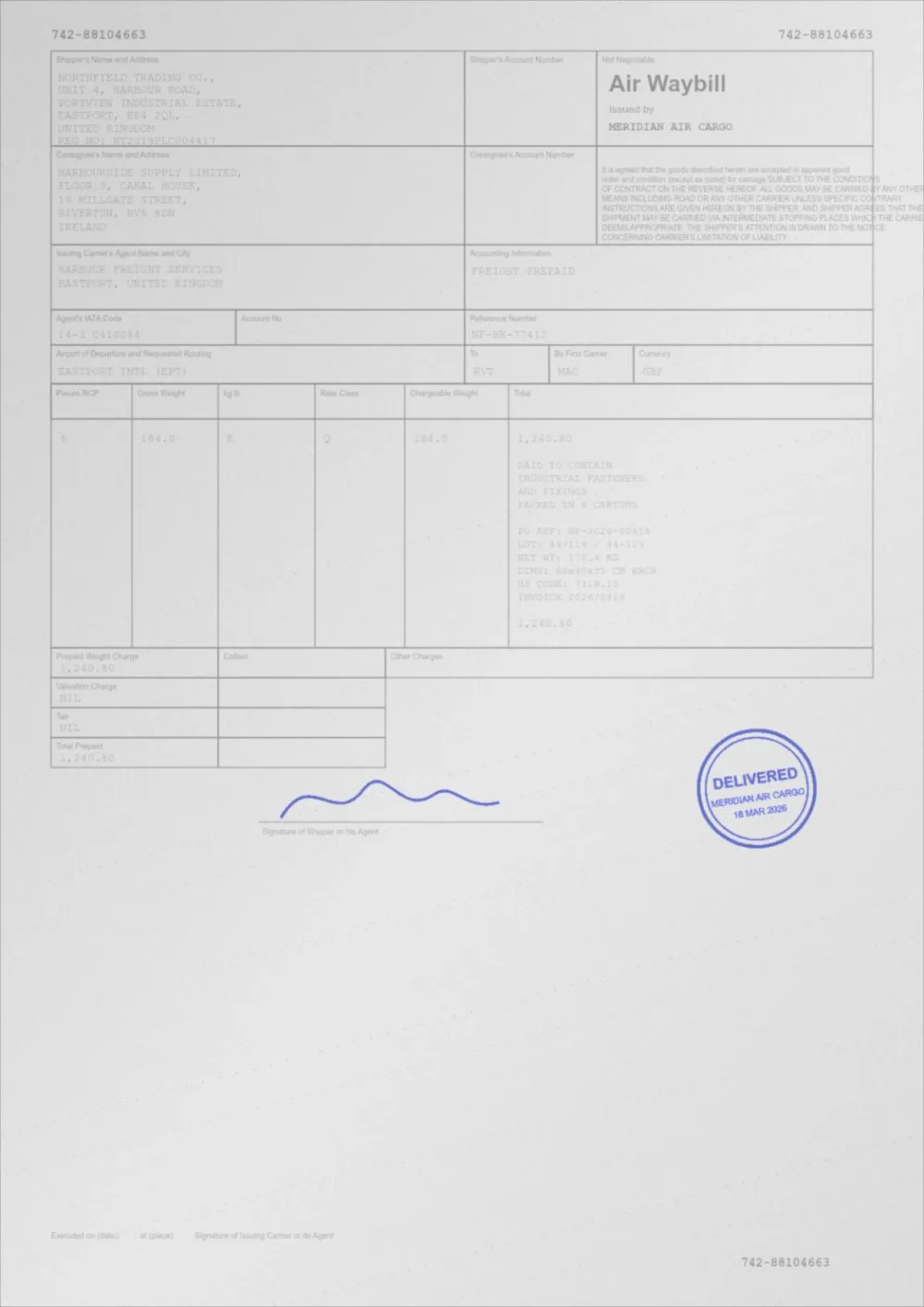
What Print Ready does to a faded page
A sample faded document, processed by the same engine in Print Ready mode. Drag the slider to compare.
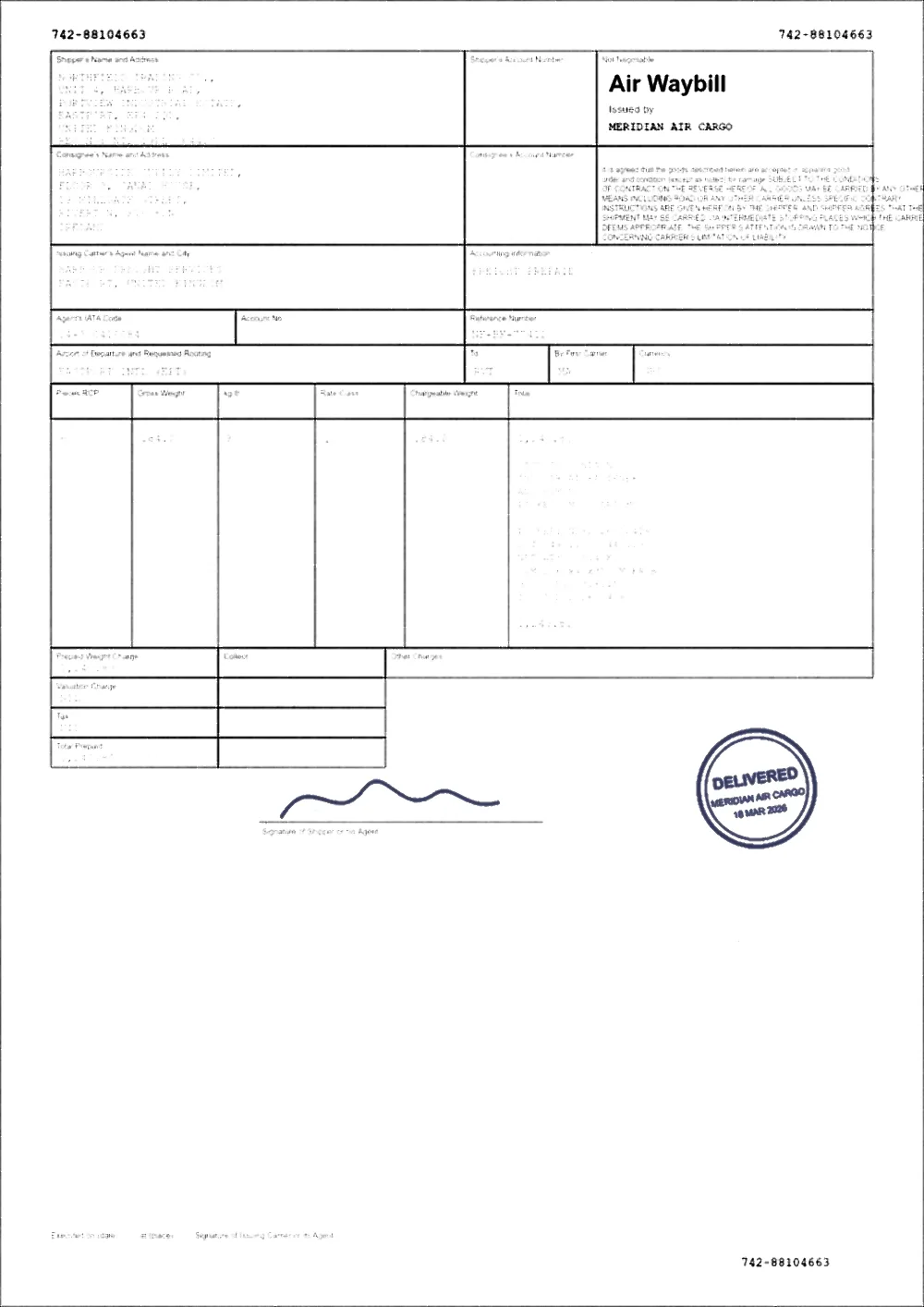 FadedPrint ready
Fix the file, then check the printer
Two different problems produce the same symptom. Work out which one you have before you reprint ten copies.
- If one document prints faint but others print normally, the problem is in the file. Darken it here.
- If everything prints faint, the problem is the printer: toner-save or draft mode is on, the cartridge is low, or the density setting has drifted.
- If print quality varies across one page — dark at the top, faint at the bottom — that is usually a drum or fuser issue, not the file.
Printer settings worth checking
- Turn off Toner Save / Economy / Draft in the printer driver.
- Set print quality to Normal or Best rather than Fast.
- On laser printers, look for a Density or Darkness setting and nudge it up one step.
- Uncheck "Print as image" unless you have a specific reason for it — it usually costs sharpness.
- Print greyscale documents in greyscale rather than colour; the mono path is generally crisper.
- On an inkjet printer, also check the paper type setting (plain paper uses less ink than photo paper), run a nozzle check, and clean the print head if lines are missing.
What Print Ready does differently
Auto Print Enhance aims for a natural-looking page. Print Ready assumes the page is going onto paper and leans harder in three places: text is pushed further towards true black, the background is normalised more aggressively so uneven grey shading disappears, and a mild unsharp mask is applied so stroke edges stay defined after the printer has had its way with them.
It is still a tone curve, not a threshold. Signatures, stamps and half-tone content survive rather than snapping to black.
Test on one page first
Print a single page of the enhanced file before committing to the whole document. Look at the smallest text on the page and at any signature or stamp. If small text has filled in, reduce Text Darkness. If a stamp has vanished, make sure Keep colour is ticked.
Questions
How do I make a PDF print darker without Adobe?
Open the file in the tool above, which runs in your browser and needs no download or account, and let Print Ready mode darken the text and whiten the paper. Download the new file and print it at Normal or Best quality with toner-save off. You can check the result in the before-and-after slider first.
My print is too light to read. What should I try first?
Check the printer first if every document prints faint: turn off economy mode and raise the density setting. If only this file is faint, darken the file instead. PDF prints too light walks through telling the two apart.
Should I darken the PDF or change the printer settings?
Both, in that order. Turning off toner-save costs nothing and helps every document. Darkening the file fixes the specific document permanently, so it prints correctly on any printer you send it to.
Will this use more ink or toner?
Yes, a little. Darker text means more toner or ink on the page. Whitening a grey background, which Print Ready does firmly, removes tone that would otherwise be printed, so it can offset some of that.
Does it change the page size or margins?
No. Page size, orientation and margins are preserved. What changes is how dark the content is and, for thin text on text pages, how heavy the strokes are.
How do I darken a PDF for printing from Adobe Reader?
Reader does not change the content of the page. Darken the file here first, open the new copy in Reader, and print that. In the print dialog, open the printer’s properties and turn off any toner-save, economy or draft setting. More in how to darken a PDF in Adobe Acrobat, and without it.
How do I make a fillable PDF darker for printing?
Typed form entries are drawn from the form fields, which sit on top of the page rather than in it, so fill the form in first and then save or print it to a new PDF so the entries become part of the page. Darken that copy and check a page of the result. If the entries are already dark and only the form lines are faint, the form can be darkened as it is.
Does it work for A4 and US Letter, in the UK and elsewhere?
Yes. Pages keep their original size and orientation, so an A4 file stays A4 and a Letter file stays Letter. Nothing depends on where you are.
How do I print a PDF darker from my phone or tablet?
Darken the file in the phone’s browser, then print the new copy with quality on Normal or Best and any economy mode off. The steps are in how to print a PDF darker from your phone.
Is there an app to make print darker?
You do not need one. This page runs in a browser tab on a computer, phone or tablet, and the file is not uploaded. A printer maker’s own app is worth checking for density settings, since it can reach options a general app cannot.
Guides on this topic
- How to Make a PDF Darker for PrintingA step-by-step walkthrough: darken a PDF, check the result on one page, and set your printer up so the improvement survives the trip to paper.
- How to Make a PDF Print ClearlyThe whole print chain: file tone, page scaling, driver settings, paper and fonts — and which of them actually decides how clear the result is.
- How to Prepare a PDF for PrintingA practical checklist for getting a clean print: page size and scaling, margins, text darkness, background, colour or greyscale, image resolution, and a test page.
- How to Print a PDF Darker from Your PhonePrint from an Android phone or iPhone and the page comes out pale? Darken the PDF in your browser, then change the settings that decide how dark it prints.
- How to Darken a PDF in Adobe AcrobatWhat Adobe Reader, Acrobat Pro and other desktop PDF programs can and cannot do to darken a PDF for printing, plus a free way that needs no download.
Related tools
- PDF prints too lightYour PDF looks fine on screen but prints faint. Find out whether the file or the printer is at fault, then darken the file in your browser.
- PDF print optimizerMeasure your PDF, see what will print faint or grey, and apply recommended settings in one click. Free, private, in your browser.
- Darken a PDFDarken a PDF online. Push faded grey text towards black, clean up grey paper and download a clearer PDF. Runs in your browser, no signup.
- PDF contrast enhancerIncrease PDF contrast and adjust brightness online. Four strengths from Light to Print Ready, a before/after preview, and no signup.
- Make a PDF print readyTurn a PDF into a print-ready document: darker text, clean white background, stronger contrast and sharper small type. Free and browser-based.
- Darken handwriting in a PDFMake handwriting in a PDF darker: faint pen, pencil notes and filled-in forms on scans. Runs in your browser, free, no signup, and the original is kept.
Make a print-ready PDF
Free, no signup, no watermark. Your file stays on your device.
How it works · Features · Privacy
Upload PDF to print-enhance