Brighten a PDF
A PDF can look dull for two different reasons. The paper has come out grey or yellowish, or the mid-tones are muddy and heavy. Brightening answers both: it lifts the mid-tones and moves the paper towards white, while the ink stays where it is.
That is different from a plain brightness slider, which lifts everything, ink included, and often makes a faint scan harder to read. Here, brightness never moves pure black or pure white, and the paper level is estimated across the page so shadows are lifted rather than burned out.
Brighten your PDF
Pick a strength, upload your PDF, and compare the result before you download.
- Upload
- Enhance
- Compare & download
or drop a PDF here — one file at a time, up to 50 MB and 100 pages
Free to try • No signup required • Your file never leaves your device
Advanced settings
What Brighten does to a faded page
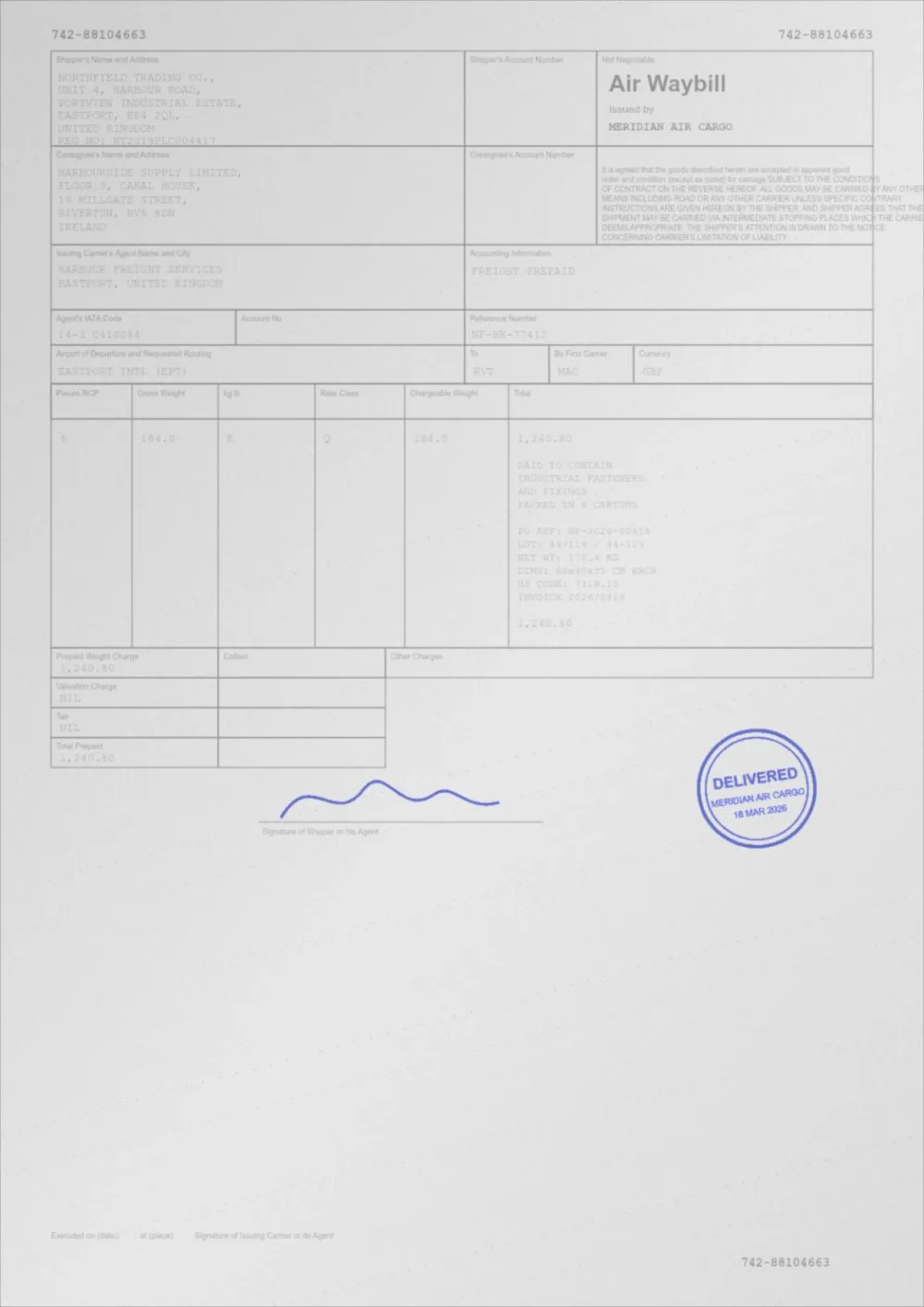
A sample faded document, processed by the same engine in Brighten mode. Drag the slider to compare.
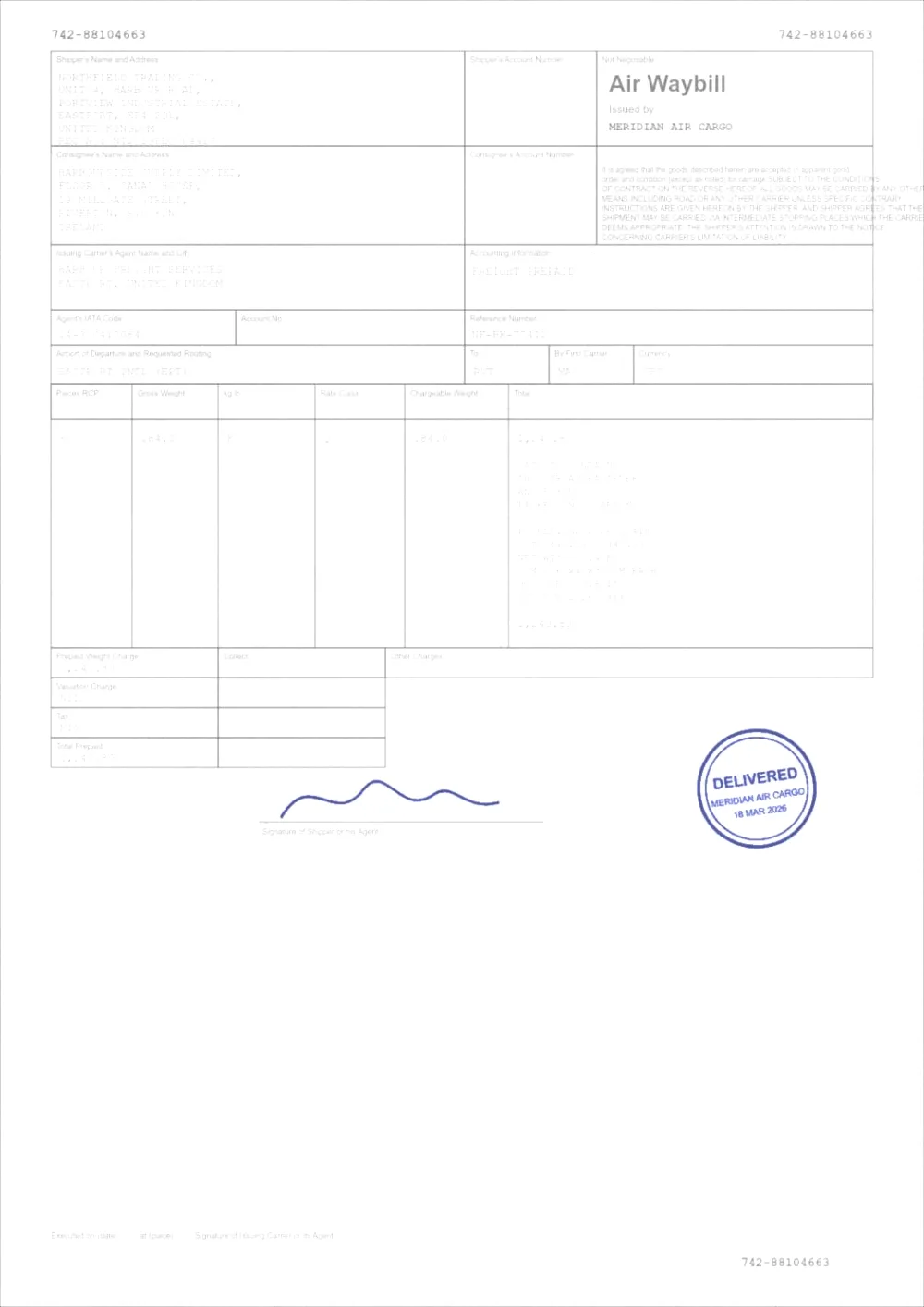 OriginalBrightened
How to brighten a PDF
- Pick a strength above. Standard is selected to begin with.
- Choose your PDF, or drop it on the page. It is processed in your browser and never uploaded.
- Drag the slider to compare the original with the result, and use Previous and Next to check other pages.
- If it is not right, change the strength or move the Brightness, Background, Contrast or Text darkness sliders, then press Apply new settings.
- Download the new PDF. The original is left untouched.
PDF brightness versus contrast
Brightness adds or subtracts tone across the page. Contrast separates the ink from the paper. They are easy to confuse, and picking the wrong one is the usual reason a scan gets worse instead of better.
If the page looks grey and heavy, brighten it. If the text looks faint, the control you want is contrast: see the PDF contrast enhancer, or darken the text directly. Raising brightness alone on faint text makes the text fainter.
What brightening does here
- Brightness lifts or lowers the mid-tones with a curve that leaves pure black and pure white alone, so it cannot clip the ink or the paper.
- Background pushes the paper towards white. It uses a paper level measured across the page rather than one global value, so a shadowed corner is corrected against its own surroundings.
- The white point is never allowed to fall onto the ink itself, which is what stops over-eager whitening from erasing faint text.
- Contrast and Text darkness are kept low in the brighten strengths so the page does not turn harsh. Raise them if the ink looks weak afterwards.
The four strengths
- Slight — a small lift for pages that are just a little dull.
- Standard — lifts mid-tones and whitens grey paper. A good first try.
- Strong — for dark or underexposed scans. It can wash out light pencil and shading, so check the result.
- Whiten paper — cleans the paper to white without lifting the mid-tones, for scans whose only problem is a grey or cream background. For whitening that leaves every dark pixel untouched, see whiten PDF background.
- Move any slider and the strength shows as Custom. Your numbers are used exactly as set.
When brightening helps
- Scans with a grey, cream or yellow paper cast.
- Underexposed phone photos of documents, where the whole page sits too dark.
- Dark photocopies where the mid-tones have clogged.
- Pages you are about to print, where a cleaner white background leaves less tone to be printed.
When it will not help
Questions
How do I increase the brightness of a PDF?
Upload the PDF above, choose a strength and download the result. For manual control, move the Brightness slider to the right to lighten the mid-tones, and the Background slider to push the paper towards white. The original file is not changed.
Will brightening make my text harder to read?
It can, if the text is already faint. Raising Brightness lightens mid-tones, and thin grey text lives in the mid-tones. The ink is protected from being erased, but if readability is the problem, use the PDF contrast enhancer instead, or raise Text darkness here.
Does it also brighten photographs and coloured areas?
Yes. Brightness applies to the whole page. With Keep colour on, coloured content keeps its hue and is adjusted more gently than neutral grey.
Can I brighten only some pages?
There is no per-page selection. Every page gets the same settings, but the paper level is measured for each page separately, so a page that is already white changes very little with the Background slider. Brightness itself is applied equally to every page.
Will the text stay selectable?
On pages made only of text and vector graphics, yes: the colours are remapped and the text stays real text. A page that contains any picture, including a scan or a logo, is enhanced as an image, and its text becomes part of that image.
I have a PDF where the pages are quite dark. How do I whiten or brighten them?
Use this page: Brighten lifts the mid-tones of each page, which helps underexposed photos of documents and dark photocopies. It is unrelated to which PDF program you use to open the file, so it works the same if you normally use a desktop editor. If only the paper looks grey and the ink is fine, whiten the background instead.
Is a dark PDF the same as a PDF in dark mode?
No. A dark page is an exposure problem in the file, and this page fixes it. Dark mode is a viewing setting on your device that changes how a normal page is shown; how to view a PDF in dark mode covers it.
Guides on this topic
- How to Increase PDF ContrastBrightness, contrast, black point, white point and gamma explained with documents in mind — and how to pick the right one for a faint PDF.
- How to Clean Up a Scanned PDFRemove grey backgrounds, speckle, shadows and show-through from scanned PDFs — and keep the faint content you actually wanted.
- How to Make a Scanned Document More ReadableReadability is more than contrast: resolution, sharpening, colour handling, OCR and accessibility all decide whether a scan is genuinely usable.
- How to Brighten a PDF and Whiten a ScanBrightening a PDF is three different jobs: a page that is too dark, paper that is grey, and uneven lighting. Which control fixes which, and the trap to avoid.
- PDF Brightness vs ContrastBrightness and contrast are not interchangeable. Measured results on a real faded scan show which one rescues a faint PDF and which one makes it worse.
- How to View a PDF in Dark ModeTurn a PDF into dark mode on Windows, Mac, iPhone and Android with the built-in colour settings, and why a dark-background PDF is the wrong file to print.
Related tools
- PDF contrast enhancerIncrease PDF contrast and adjust brightness online. Four strengths from Light to Print Ready, a before/after preview, and no signup.
- Clean up a scanned PDFClean scanned PDFs: whiten grey backgrounds, remove speckle and shadows, and even out uneven lighting from scanners and phone cameras.
- PDF enhancerEnhance a PDF online: adjust darkness, contrast, brightness, background, sharpening and noise in one place. Measured, not guessed. No signup, runs in your browser.
- Darken a PDFDarken a PDF online. Push faded grey text towards black, clean up grey paper and download a clearer PDF. Runs in your browser, no signup.
Brighten your PDF
Free, no signup, no watermark. Your file stays on your device.
How it works · Features · Privacy
Upload PDF to brighten