OCR a scanned PDF
A scanned page is a picture of text. You cannot search it, select a sentence or copy a figure out of it. OCR, optical character recognition, reads the picture and adds the text it finds as an invisible layer, so the page looks the same and behaves like a normal document.
This tool cleans each scanned page first, because recognition is far more accurate on a clean page, then reads it, and writes a new PDF. All of it happens in your browser. The recognition engine and the language models are served from this site, so your document is not sent anywhere.
Make your scanned PDF searchable
Choose the language, upload your PDF, and download a PDF you can search.
- Upload
- Recognise
- Search & download
Pick the language the text is written in. Mixed-language pages are recognised best in their main language.
or drop a PDF here — one file at a time, up to 50 MB and 100 pages
Free to try • No signup required • Your file never leaves your device
Up to 20 scanned pages per run. Recognition is slower than the other tools: expect several seconds per page.
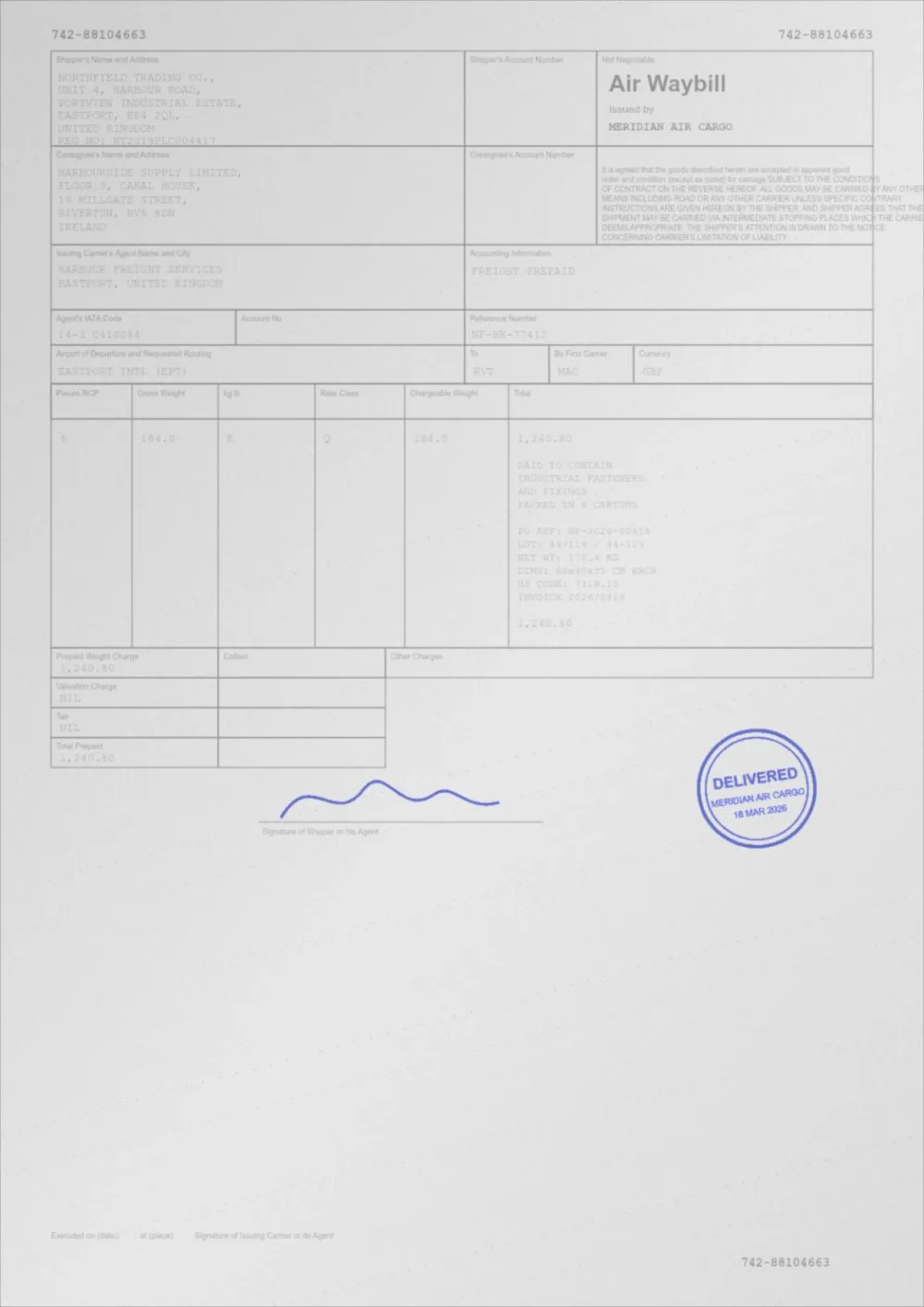
What Auto Print Enhance does to a faded page
A sample faded document, processed by the same engine in Auto Print Enhance mode. Drag the slider to compare.
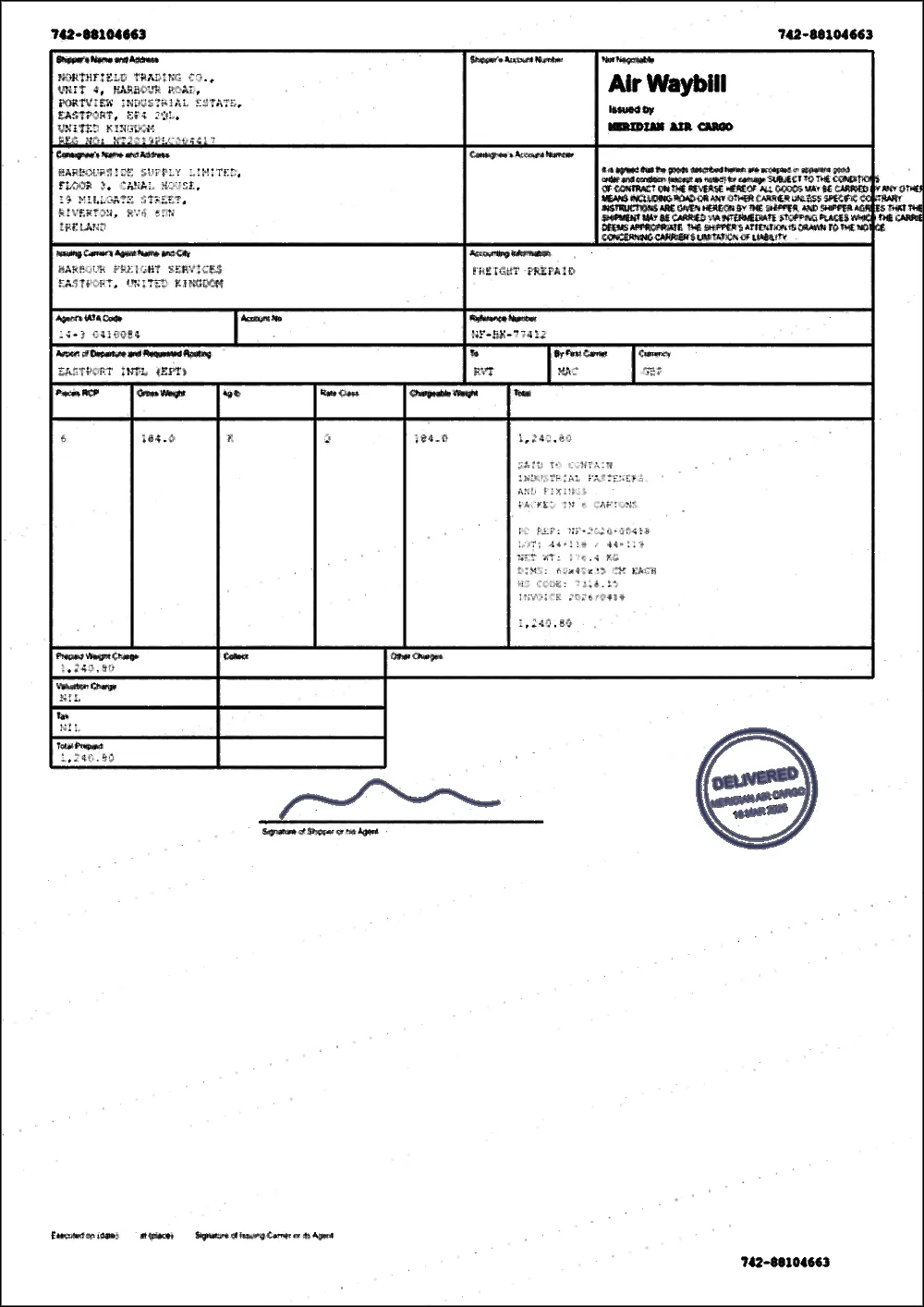 FadedEnhanced
How to make a scanned PDF searchable
- Choose the language the document is written in.
- Leave Clean each scanned page first ticked unless the scan is already crisp and white.
- Choose your PDF, or drop it on the page. It is processed in your browser and never uploaded.
- Wait while each page is cleaned and read. The progress bar shows the page and a rough time remaining.
- Try the search box on the results screen, compare the original with the result, and download the new PDF.
What you get
- A PDF that looks like the cleaned scan, with an invisible text layer on top.
- Text you can search, select and copy in any PDF viewer.
- Pages that already contain real text, with no images, left exactly as they were.
- A word count and the engine's own confidence figure, so you can judge how well it read the document.
Why the page is cleaned first
Recognition engines are trained on clean, high-contrast text. A faded or grey scan makes them miss words or misread them. On the faded demo scan used on this site, the recognition engine found 6 of 24 test words in the original and 18 of 24 after cleaning. That is one synthetic sample in English, so treat it as an illustration rather than a promise; but the direction is consistent with how these engines behave.
The cleaning is the same engine as Enhance a scanned PDF: the paper is whitened, shadows are flattened and faint ink is darkened, page by page.
Languages and limits
- Languages: English, French, German and Spanish. Other Latin-script languages are not available yet, and neither are Arabic, Urdu, Hindi, Chinese, Japanese or Korean.
- Pages: up to 20 scanned pages per run. A longer PDF can be split and done in parts.
- Speed: OCR is the slowest thing on this site. Expect several seconds per page, and longer on a phone or an older computer. On a computer with plenty of memory two pages are read at once.
- First use: the engine and the language model are a few megabytes. They are downloaded from this site the first time and then cached by your browser.
What OCR cannot do
- It makes mistakes, especially with numbers, names, small print and unusual fonts. Check anything important against the page.
- It cannot read handwriting.
- It does not rebuild tables, columns or layout: the text layer is the words in position, which is what search and copy need.
- It does not straighten crooked pages. A page scanned at an angle reads less accurately.
- It does not produce an archival PDF/A file.
What happens to the page images
Scanned pages are rendered at 200 DPI and written back as images, with the text layer on top. If your original scan was captured at a higher resolution, the new file is at 200 DPI, so keep the original. The new file is not modified in any other way than cleaning and the added text.
Privacy
The recognition engine, its worker and the language models are files on this site, loaded by your browser. No request carries your document, the page images or the recognised text anywhere. The language model is kept by your browser's normal cache; the text of your document is not stored by the page.
Questions
Is my PDF uploaded for OCR?
No. The engine runs in your browser and is served from this site, so nothing about your document is sent to another server. Read the privacy policy.
How accurate is the text?
It depends on the scan. Clean, dark, straight pages of ordinary print are read well. Faded, skewed, tiny or unusual text is read less well. The confidence figure is the engine's own estimate, not a guarantee, and it is worth checking numbers and names.
Will the PDF look different?
Yes, slightly. If you leave cleaning on, the paper is whiter and the ink darker, and scanned pages are written at 200 DPI. Pages that already had real text are untouched.
Can it read Urdu, Arabic or Hindi?
Not yet. The invisible text layer needs a font for the script, and the language models are not included. English, French, German and Spanish are available.
Why is it slow?
Recognition does a lot of work per page, and it runs on your own device rather than a server. The time estimate appears after the first page. Closing the tab cancels the run.
Can it read handwriting?
No. It is built for printed text.
What if my PDF already has text?
Pages made of real text and no images are left alone. If every page already has text, the tool tells you there is nothing to recognise.
Guides on this topic
- How to Make a Scanned Document More ReadableReadability is more than contrast: resolution, sharpening, colour handling, OCR and accessibility all decide whether a scan is genuinely usable.
- How to Improve Scanned PDF QualityMost scan quality is decided at capture time. Resolution, colour mode, lighting and compression settings that make every later step easier.
- How to Make a Scanned PDF SearchableHow OCR makes a scanned PDF searchable, what decides its accuracy, why cleaning the scan first helps, and how to do it without uploading your document.
Related tools
- Enhance a scanned PDFEnhance a scanned PDF: it measures your scan first, then cleans grey backgrounds and speckle, darkens the ink and sharpens edges. Preview before you download.
- Clean up a scanned PDFClean scanned PDFs: whiten grey backgrounds, remove speckle and shadows, and even out uneven lighting from scanners and phone cameras.
- PDF enhancerEnhance a PDF online: adjust darkness, contrast, brightness, background, sharpening and noise in one place. Measured, not guessed. No signup, runs in your browser.
- Make a scanned PDF darkerMake scanned PDFs darker and easier to read. Corrects faint scans, grey backgrounds and uneven lighting from flatbed scanners and phone cameras.
Make your scanned PDF searchable
Free, no signup, no watermark. Your file stays on your device.
How it works · Features · Privacy
Upload scanned PDF