PDF contrast enhancer
Contrast is the distance between the darkest and lightest parts of a page. Brightness moves everything up or down together; contrast pulls them apart. For a faint document, contrast is the setting that matters.
Choose a strength below — Light, Standard, Strong or Print Ready — or set contrast, brightness, text darkness and background yourself. The page starts on Strong, which sets an aggressive black point and white point and applies a steep S-curve between them.
Increase PDF contrast
Pick a strength, upload your PDF, and compare the result before you download.
- Upload
- Enhance
- Compare & download
or drop a PDF here — one file at a time, up to 50 MB and 100 pages
Free to try • No signup required • Your file never leaves your device
Advanced settings
What High Contrast does to a faded page
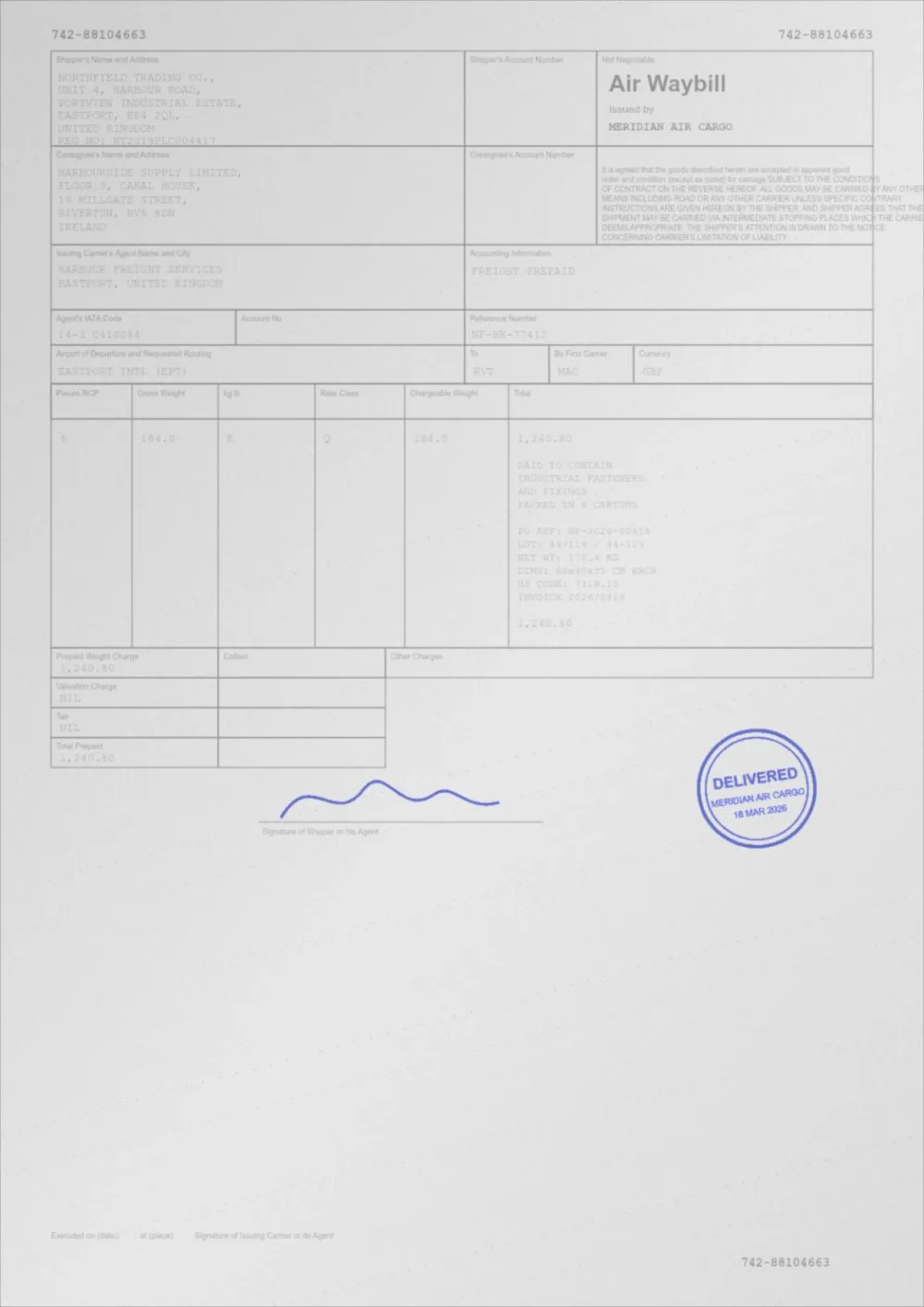
A sample faded document, processed by the same engine in High Contrast mode. Drag the slider to compare.
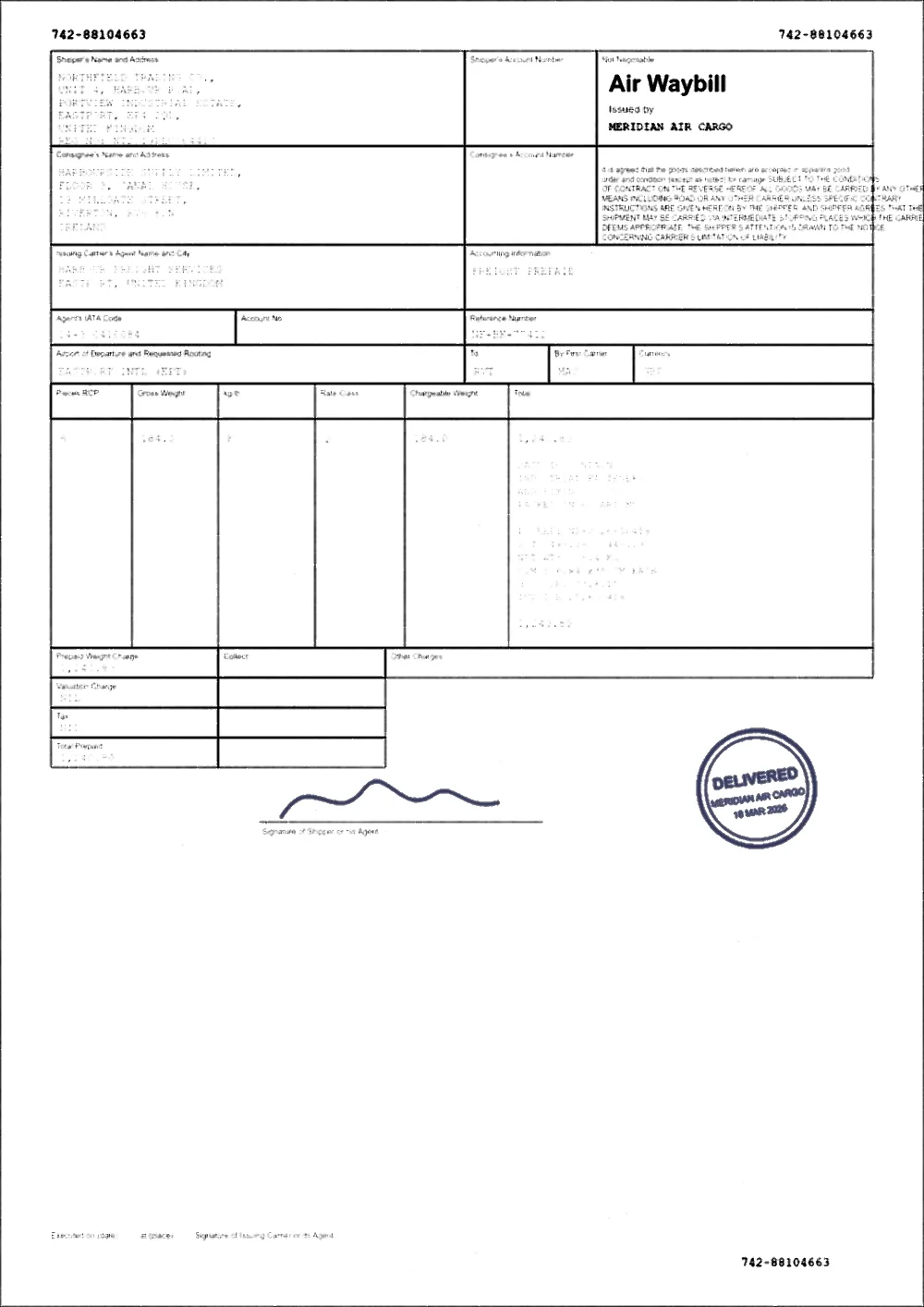 Low contrastHigh contrast
What PDF contrast means
Contrast is the difference in lightness between the ink and the paper. A page of solid black text on white paper has high contrast. A page of mid-grey text on light grey paper has low contrast, and it is tiring to read on screen and unreliable in print.
Changing the contrast of a PDF means widening or narrowing that gap. A contrast editor for PDF files works on the page itself, so the result is a new PDF you can print or share, not just a different way of viewing the old one.
How to increase contrast in a PDF
- Pick a strength above. Strong is selected to begin with; Light is gentler, Standard measures each page, and Print Ready is tuned for paper.
- Choose your PDF, or drop it on the page. It is processed in your browser and never uploaded.
- Drag the slider to compare the original with the result, and use Previous and Next to check other pages.
- If it is not right, change a strength or move the Contrast, Brightness, Text darkness or Background sliders, then press Apply new settings.
- Download the new PDF. The original is left untouched.
The four strengths
- Light — a gentle lift for pages that are only a little flat. Keeps the paper colour mostly as it was.
- Standard — measures each page and chooses the amount of correction itself. A page that is already crisp is left almost alone.
- Strong — the full S-curve for very washed-out scans and photocopies. Can flatten mid-tones in photographs.
- Print Ready — darker ink, whiter paper and a mild sharpen, tuned for laser and inkjet output.
- Move any slider and the strength shows as Custom. Your numbers are used exactly as set.
When to increase contrast
- Scanned documents where the text looks grey and the paper looks dull.
- Photocopies of photocopies, carbon copies and thermal receipts that have faded.
- Phone-camera scans taken in weak or uneven light.
- Documents that look acceptable on screen but print faint — the printer cannot add the contrast the screen was supplying.
- Digital PDFs where the author used a light grey for body text.
Brightness versus contrast, in one paragraph
Raising brightness on a faint scan makes the ink lighter too — the page gets whiter and less readable. Raising contrast keeps the paper where it is and drives the ink down, which is what you actually want. That is why a generic image editor so often makes a faint scan worse: the obvious slider is the wrong one.
If the problem is a dull, grey page rather than weak ink, the brightness-first route is the dedicated Brighten PDF tool.
How the curve is built
- Sample the page and build a histogram of lightness values.
- Take the 95th percentile as the paper level and the mean of everything meaningfully darker than it as the ink level.
- Set the black point at or just above the ink level, so ink lands near true black.
- Set the white point at or just below the paper level, so paper lands at true white — but never below the ink, which would erase the text instead of darkening it.
- Apply a gamma curve plus a smooth S-curve between the two points, so mid-tones separate without clipping.
When high contrast is the wrong choice
High Contrast is built for washed-out documents. On a page containing photographs, charts with subtle shading, or a scanned photo ID, it will flatten the mid-tones you wanted to keep.
For those, Auto Print Enhance is the better starting point: it measures the page and chooses a gentler curve when the page does not need a harsh one.
Questions
What is the difference between contrast and darkness here?
Text Darkness moves the black point and the gamma, so ink gets darker. Contrast controls the steepness of the S-curve between black and white, so the separation between tones increases. In practice you usually want a bit of both.
Will high contrast destroy photos in my document?
It can flatten them. If the document mixes text and photographs, use Auto Print Enhance, which applies a softer curve when the page has a wide tonal range.
Can I adjust the brightness of a PDF?
Yes. The Brightness slider lightens or darkens the mid-tones, and it never moves pure black or pure white, so it cannot wash out the ink or burn out the paper. On a faint scan, raising brightness alone makes the ink lighter too, which usually hurts readability. A whiter background with solid ink comes from the Background slider combined with Contrast.
Is this the same as adaptive thresholding?
No. Thresholding forces every pixel to pure black or pure white, which is available separately as Black & White mode. Contrast enhancement keeps the greys and simply spreads them out.
Guides on this topic
- How to Increase PDF ContrastBrightness, contrast, black point, white point and gamma explained with documents in mind — and how to pick the right one for a faint PDF.
- PDF Brightness vs ContrastBrightness and contrast are not interchangeable. Measured results on a real faded scan show which one rescues a faint PDF and which one makes it worse.
Related tools
- Darken a PDFDarken a PDF online. Push faded grey text towards black, clean up grey paper and download a clearer PDF. Runs in your browser, no signup.
- Brighten a PDFBrighten a PDF online: lift dull mid-tones and whiten grey paper without washing out the ink. Four strengths, before/after preview, no signup.
- PDF enhancerEnhance a PDF online: adjust darkness, contrast, brightness, background, sharpening and noise in one place. Measured, not guessed. No signup, runs in your browser.
- Sharpen a PDFSharpen a PDF online: firm up soft scanned text with a gentle, halo-limited sharpen. Three strengths, before/after preview, no signup.
Increase PDF contrast
Free, no signup, no watermark. Your file stays on your device.
How it works · Features · Privacy
Upload PDF to enhance contrast