Whiten a PDF background
A scan records the colour of the paper as well as the ink on it. Grey, cream or yellowish paper is faithfully reproduced on screen and printed in full, which looks dull and spends toner on a background nobody wants.
This tool changes only the paper. Any pixel darker than just over half the paper brightness is not touched by the whitening step, so normal dark ink, stamps and signatures come through exactly as they were scanned.
Whiten your PDF background
Pick a strength, upload your PDF, and compare the result before you download.
- Upload
- Enhance
- Compare & download
or drop a PDF here — one file at a time, up to 50 MB and 100 pages
Free to try • No signup required • Your file never leaves your device
What Whiten background does to a faded page
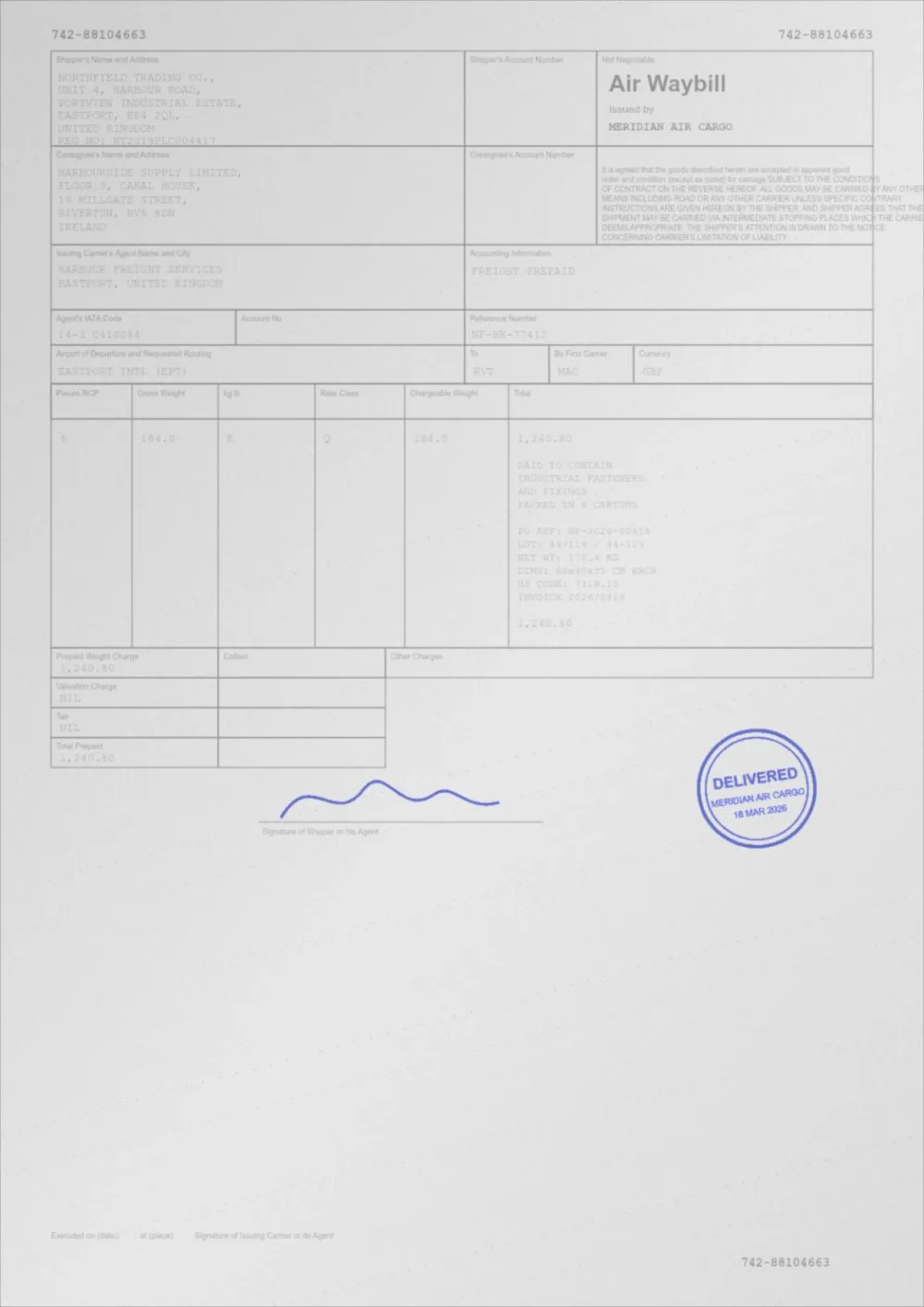
A sample faded document, processed by the same engine in Whiten background mode. Drag the slider to compare.
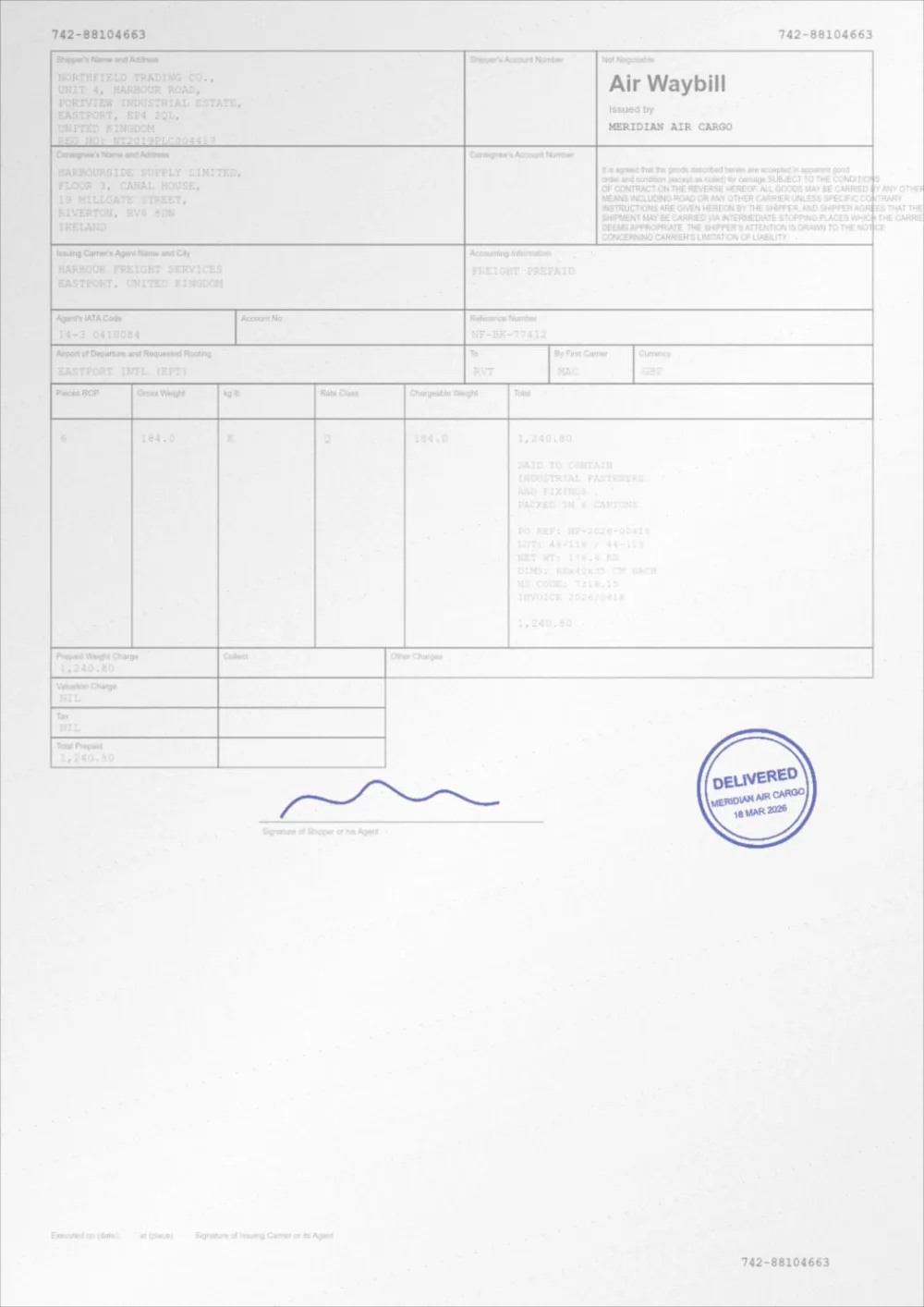 Grey paperWhiter paper
How to whiten a PDF background
- Pick a strength above. Standard is selected to begin with.
- Choose your PDF, or drop it on the page. It is processed in your browser and never uploaded.
- Drag the slider to compare the original with the result, page by page.
- If the paper is not white enough, choose Full white. If pale details have faded, step back to Gentle, then press Apply new settings.
- Download the new PDF. The original is left untouched.
What changes and what does not
- Paper is moved towards pure white along a smooth curve, and its colour cast is removed, so cream paper ends up neutral white rather than a lighter cream.
- Dark ink is not altered by the whitening step. The curve starts at a knee at 55% of the page's paper brightness; anything darker than that is left exactly as it was.
- Very faded ink, lighter than that knee, sits in the range that is being lifted, so it can become a little lighter in absolute terms. The curve only ever spreads tones apart above the knee, so the difference between faded ink and the paper is kept or widened, not lost.
- Pale tints near the paper level, such as a light yellow highlighter or faint pencil, sit between the knee and the paper and can fade or vanish at Full white. Gentle keeps most of them.
- Uneven lighting is not fixed here. A shadow across one corner stays a shadow; use remove scan shadows for that.
Whiten, brighten or clean?
Three tools touch the paper, and they do different things.
- Whiten PDF background (this page) changes only the paper and leaves every dark pixel alone.
- **Brighten PDF** lifts the mid-tones of the whole page, which changes how the ink looks as well.
- **Clean a scanned PDF** does several jobs at once: whitening, shadows, speckle and darker ink.
When whitening helps
- Scans with a grey, cream or yellow paper cast.
- Photocopies of photocopies, where the background has turned dull grey.
- Documents you are about to print, where a white background leaves less tone to be printed.
- Pages you will place in a report or presentation next to other white pages.
Limits
- It cannot make faint ink darker. Use contrast or darkening for that.
- Pages that contain images, including every scan, are rendered at 200 DPI and written back as images. Pages made only of text and vector graphics have no scanned background, so they are left untouched, and the result panel says so.
- Whitening is not a watermark remover. A light watermark near the paper level may fade as a side effect; do not use it to strip marks from documents you do not own.
Questions
Will whitening change my ink?
Dark ink is not altered by the whitening step: pixels darker than the knee, at 55% of the paper brightness, are left exactly as they were. Very faded ink, lighter than the knee, can become a little lighter, although its contrast against the paper is preserved or increased. The page is saved again as an image, so ordinary image compression still applies.
Why did my light yellow highlighter disappear?
Pale tints sit close to the paper level, so a strong whitening setting treats them as paper. Choose Gentle, which stops short of pure white and keeps most pale tints.
Will it fix a shadow in one corner of my scan?
No. Whitening moves everything near the paper level towards white, but a shadow is darker than the rest of the paper and stays darker. Use remove scan shadows first, then whiten.
Will it save ink or toner?
A white background has nothing to print, so there is less tone on the page. How much you save depends on your printer and the document, and I cannot promise a figure.
Will the text stay selectable?
On pages made only of text and vector graphics, yes, because they are not changed. A page that contains any picture, including a scan, is processed as an image, and its text becomes part of that image.
Is my PDF uploaded?
No. Reading, whitening and writing the new file all happen inside your browser tab.
How do I scan yellow paper and make the ink dark but the paper white?
Whiten the paper here first, using the Standard or Full white strength. Then darken the ink with Make a scanned PDF darker, or use Clean a scanned PDF to do both in one pass. Scan in greyscale or colour rather than black and white, so there is something left to correct.
Can I lighten a dark background to save ink when printing?
For scanned pages with a grey, cream or yellow paper tone, yes: whitening moves the paper towards white and leaves dark ink alone. For a page that was designed with a solid dark background, it is not the right tool; print the light version of the document instead. See how to view a PDF in dark mode for why.
Does “bleach a PDF” mean the same as whitening?
In effect, yes. People searching for it want the paper tone to go white and the clutter to disappear. This tool does the first part and leaves ink alone; it is not a way to remove a watermark.
Guides on this topic
- How to Clean Up a Scanned PDFRemove grey backgrounds, speckle, shadows and show-through from scanned PDFs — and keep the faint content you actually wanted.
- How to Make a Scanned Document More ReadableReadability is more than contrast: resolution, sharpening, colour handling, OCR and accessibility all decide whether a scan is genuinely usable.
- Remove Shadows and Grey Background from a ScanA grey background, a shadow and speckle are different problems with different fixes. How to tell them apart, what order to fix them in, and how to capture better.
Related tools
- Remove shadows from a scanned PDFRemove shadows and uneven lighting from a scanned PDF: flatten the gradient from phone scans and book spines without touching the ink. Free, in your browser.
- Brighten a PDFBrighten a PDF online: lift dull mid-tones and whiten grey paper without washing out the ink. Four strengths, before/after preview, no signup.
- Clean up a scanned PDFClean scanned PDFs: whiten grey backgrounds, remove speckle and shadows, and even out uneven lighting from scanners and phone cameras.
- PDF enhancerEnhance a PDF online: adjust darkness, contrast, brightness, background, sharpening and noise in one place. Measured, not guessed. No signup, runs in your browser.
- Make a scanned PDF darkerMake scanned PDFs darker and easier to read. Corrects faint scans, grey backgrounds and uneven lighting from flatbed scanners and phone cameras.
Whiten your PDF background
Free, no signup, no watermark. Your file stays on your device.
How it works · Features · Privacy
Upload PDF to whiten