PDF print optimizer
Most print problems come from the file, not the printer: grey ink, grey paper, flat contrast, or a shadow across one corner. This tool measures those things on your PDF first, tells you what it found in plain language, and then suggests settings.
You stay in control. Apply the recommendation in one click, or change any value. Nothing is uploaded; the measuring happens in your browser.
Check your PDF before you print
Upload a PDF to see what it needs. Nothing is changed until you apply the settings.
- Upload
- Analyze
- Clean
- Enhance
- Preview
- Download
or drop a PDF here — one file at a time, up to 50 MB and 100 pages
Free to try • No signup required • Your file never leaves your device
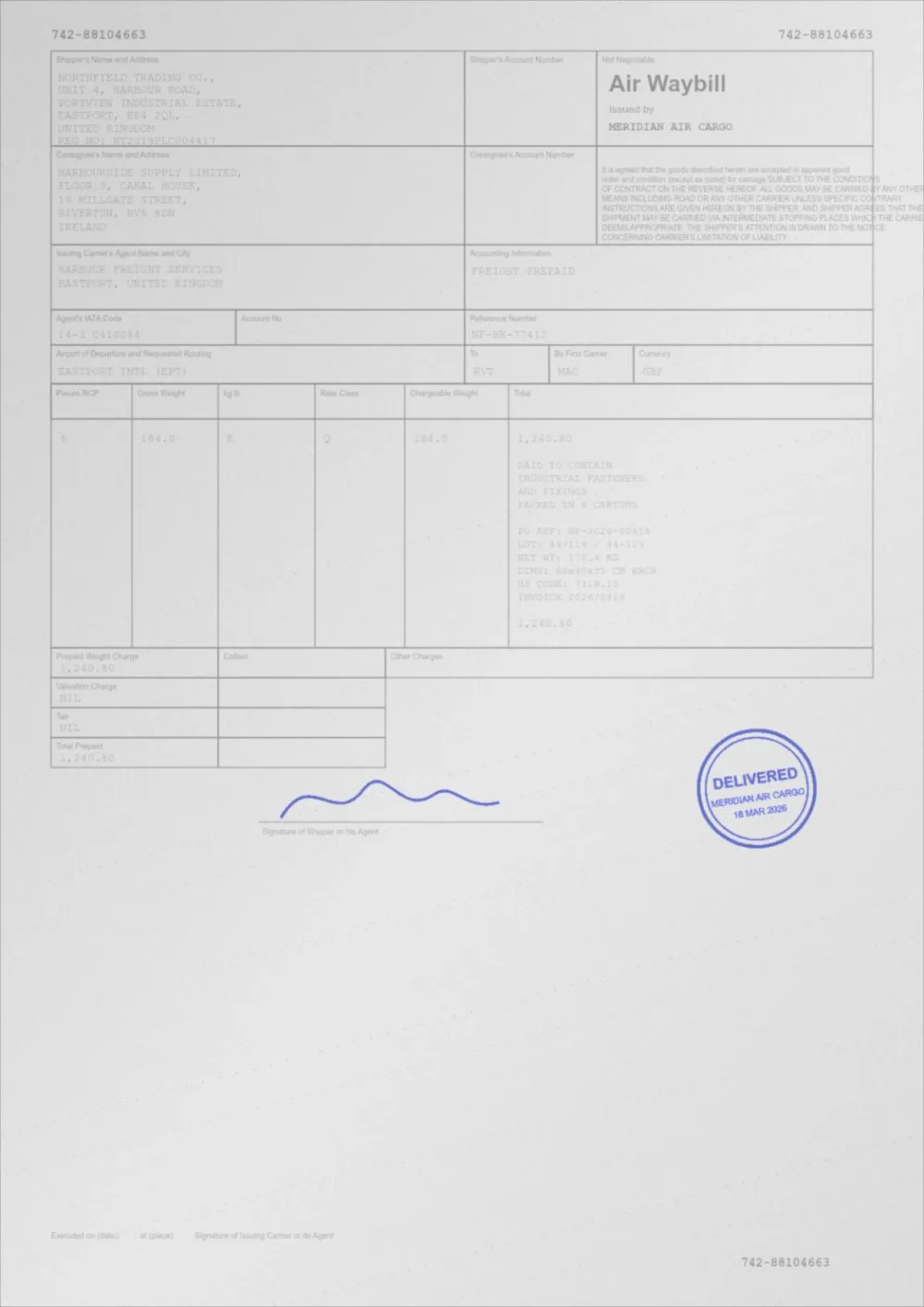
What Print Ready does to a faded page
A sample faded document, processed by the same engine in Print Ready mode. Drag the slider to compare.
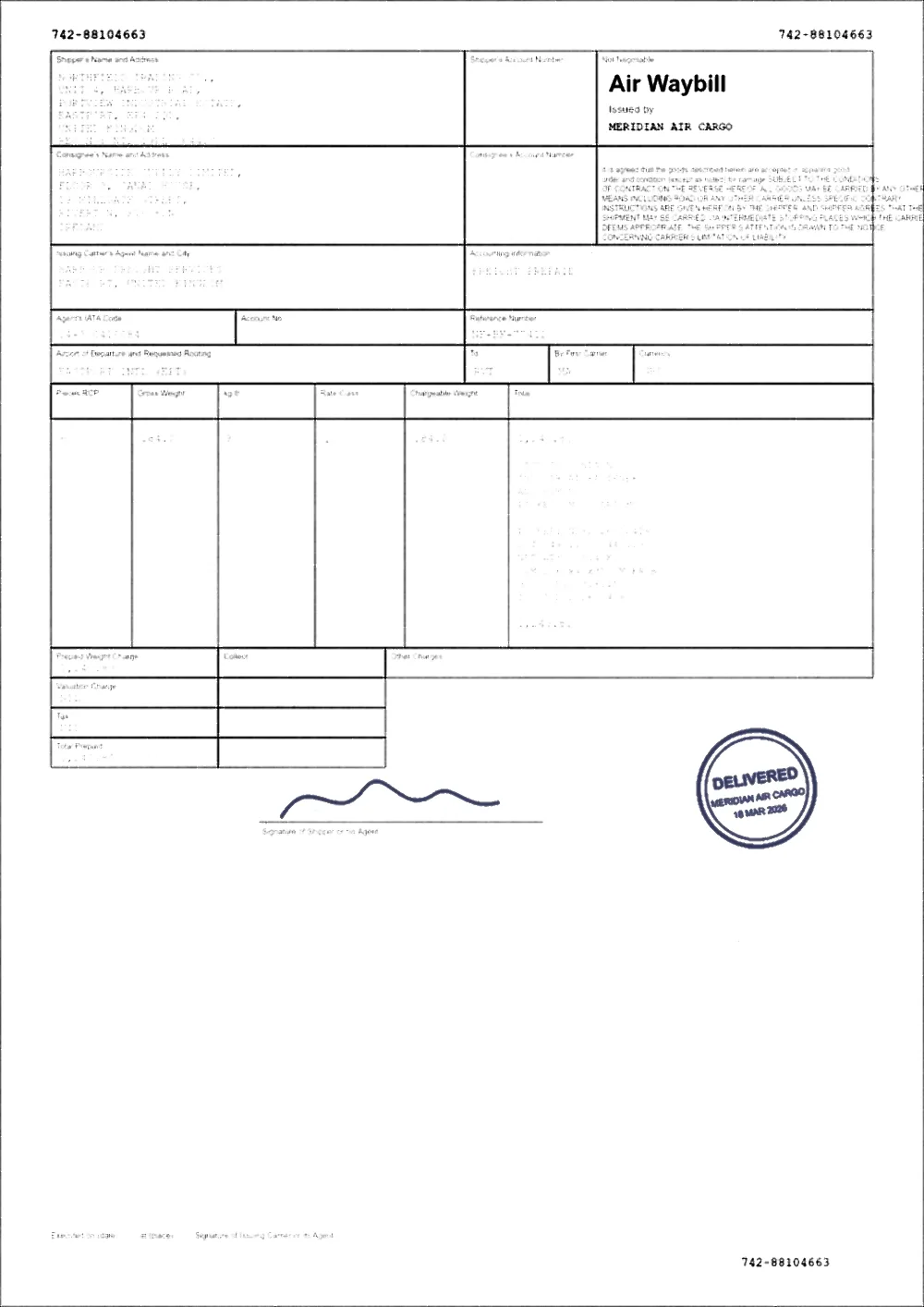 FadedPrint ready
How the optimizer works
- Choose your PDF. Up to 12 pages, spread evenly through the document, are measured at a small size.
- Read the findings. Each one says what was measured and whether it needs attention, is slight, or is fine.
- Apply the recommended settings, or adjust the sliders, the print colour and the page handling yourself.
- Compare the original with the result, then download the new PDF. Every page is processed when you apply, not only the measured ones.
What it measures, and what it does not
The findings come from numbers measured on your pages, not from guesses:
- Ink level — how dark the darkest marks are, from 0 (black) to 255 (white).
- Paper level — how white the background is.
- Contrast — the gap between ink and paper.
- Lighting — whether the paper level varies across the page, which is what a shadow or gradient looks like.
- Colour — how much of the page carries colour, which matters if you print in mono.
- Page type — whether a page is text and vector graphics, or contains images and will be re-rendered as an image.
- It does not measure speckle or noise, blur, the resolution of embedded images, or how your printer behaves. If you can see speckle, raise Noise reduction; if the scan is soft, sharpening helps a little but cannot restore detail that was never captured.
How to make a PDF darker for printing
There are two places a faint print can come from, and the order matters. Fix the file first, because that change is permanent and travels with the document. Then check the printer, because a toner-save mode will lighten even a perfect file.
- Let the optimizer measure the file. If the ink or paper findings say "needs attention", the file is part of the problem.
- Raise Text darkness until the ink is solid, and Background until grey paper turns white. The recommendation sets both from your measurements.
- Leave Thicken thin text on for text pages: a very thin font can be pure black on screen and still print faint.
- Print a single page first and look at the smallest text and at any stamp or signature.
- If every document prints faint, turn off toner-save or draft mode and check the cartridge. See PDF prints too light, darken a PDF for printing, and the guide on making a PDF darker for printing.
Grayscale or black and white?
Both remove colour. They are not the same.
- **Grayscale** keeps every shade of grey. It suits a mono printer and anything with shading, photographs or signatures.
- **Black & white** forces every pixel to pure black or pure white. Edges are crisp, but all mid-tones are lost, so it is only suitable for plain text and line art.
- If colour carries meaning, such as a legend, a highlighted row or a status column, check the grey result before printing many copies: different colours can land on very similar greys.
Why pages can be adapted separately
A document often mixes pages: one clean digital page, one faint scan, one with a shadow. A single set of numbers would over-correct the good page or under-correct the bad one. With Adapt each page separately on, every page is measured on its own and its sliders are chosen for it. The optimizer turns this on by default when the sampled pages differ a lot.
Limits
- Pages that contain images are rendered as images, at 200 DPI. Pages made only of text and vector graphics keep their real text.
- It is built for office and home printing. For press work with spot colours, ICC-managed CMYK or bleed, talk to the printer first.
- Scanned pages are not given a searchable text layer.
Questions
How does it decide what my PDF needs?
It renders a sample of your pages at a small size and measures ink level, paper level, contrast, lighting evenness and colour. The recommended slider values come from the same rules that Auto Print Enhance uses, applied to the typical page of your document. The reasons for each value are listed next to the sliders.
Does it detect noise or blur?
No. Those are not measured, so the optimizer never claims to have found them. Noise reduction and Sharpening are still available as sliders if you can see the problem yourself.
Are all my pages analysed?
Up to 12 pages, spread evenly from the first to the last, are measured to keep the check quick. When you apply settings, every page is processed.
Can it make my PDF darker for printing?
Yes. If the measurements show light ink or grey paper, the recommendation raises Text darkness and Background accordingly, and you can raise them further. Check one printed page before printing the whole document.
Is my PDF uploaded to analyse it?
No. Measuring and processing both happen inside your browser tab. There is no server that receives the file.
Should I choose Grayscale?
If you print on a mono printer, yes, because you see exactly the greys the printer will use. If you print in colour, keep colour so stamps and signatures stay recognisable.
Guides on this topic
- How to Make a PDF Darker for PrintingA step-by-step walkthrough: darken a PDF, check the result on one page, and set your printer up so the improvement survives the trip to paper.
- How to Make a PDF Print ClearlyThe whole print chain: file tone, page scaling, driver settings, paper and fonts — and which of them actually decides how clear the result is.
- Why Does My PDF Print Too Light?The document looks fine on screen and prints faint. Here is what is actually happening, and how to tell whether the file or the printer is at fault.
- How to Prepare a PDF for PrintingA practical checklist for getting a clean print: page size and scaling, margins, text darkness, background, colour or greyscale, image resolution, and a test page.
Related tools
- Darken a PDF for printingMake a PDF darker before you print it. Stronger text, cleaner background and better contrast for laser and inkjet printers. Free, in your browser.
- Make a PDF print readyTurn a PDF into a print-ready document: darker text, clean white background, stronger contrast and sharper small type. Free and browser-based.
- PDF prints too lightYour PDF looks fine on screen but prints faint. Find out whether the file or the printer is at fault, then darken the file in your browser.
- PDF contrast enhancerIncrease PDF contrast and adjust brightness online. Four strengths from Light to Print Ready, a before/after preview, and no signup.
Check your PDF before you print
Free, no signup, no watermark. Your file stays on your device.
How it works · Features · Privacy
Upload PDF to analyze