Remove shadows from a scanned PDF
A shadow on a scan is not part of the document. It comes from a phone held over the page, a book spine curving away from the glass, or a scanner lid that did not close. It makes one side of the page darker, so any single brightness setting that fixes one side spoils the other.
This tool measures the paper level across the page, smooths it so it never carries text, and brightens each region by the amount needed to match the page as a whole. The ink keeps its place relative to its own paper.
Remove shadows from your scan
Pick a strength, upload your PDF, and compare the result before you download.
- Upload
- Enhance
- Compare & download
or drop a PDF here — one file at a time, up to 50 MB and 100 pages
Free to try • No signup required • Your file never leaves your device
What Shadow removal does to a faded page
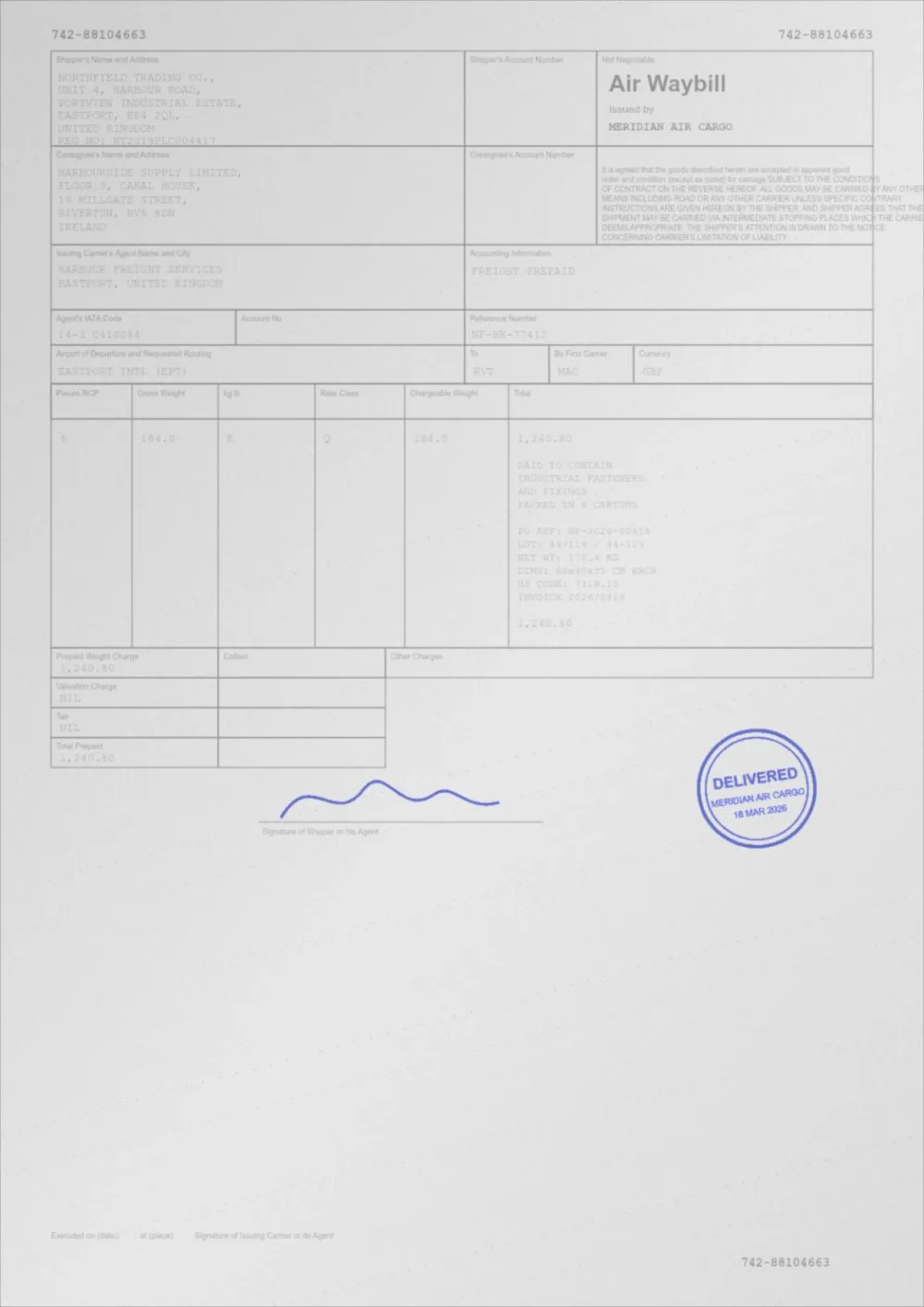
A sample faded document, processed by the same engine in Shadow removal mode. Drag the slider to compare.
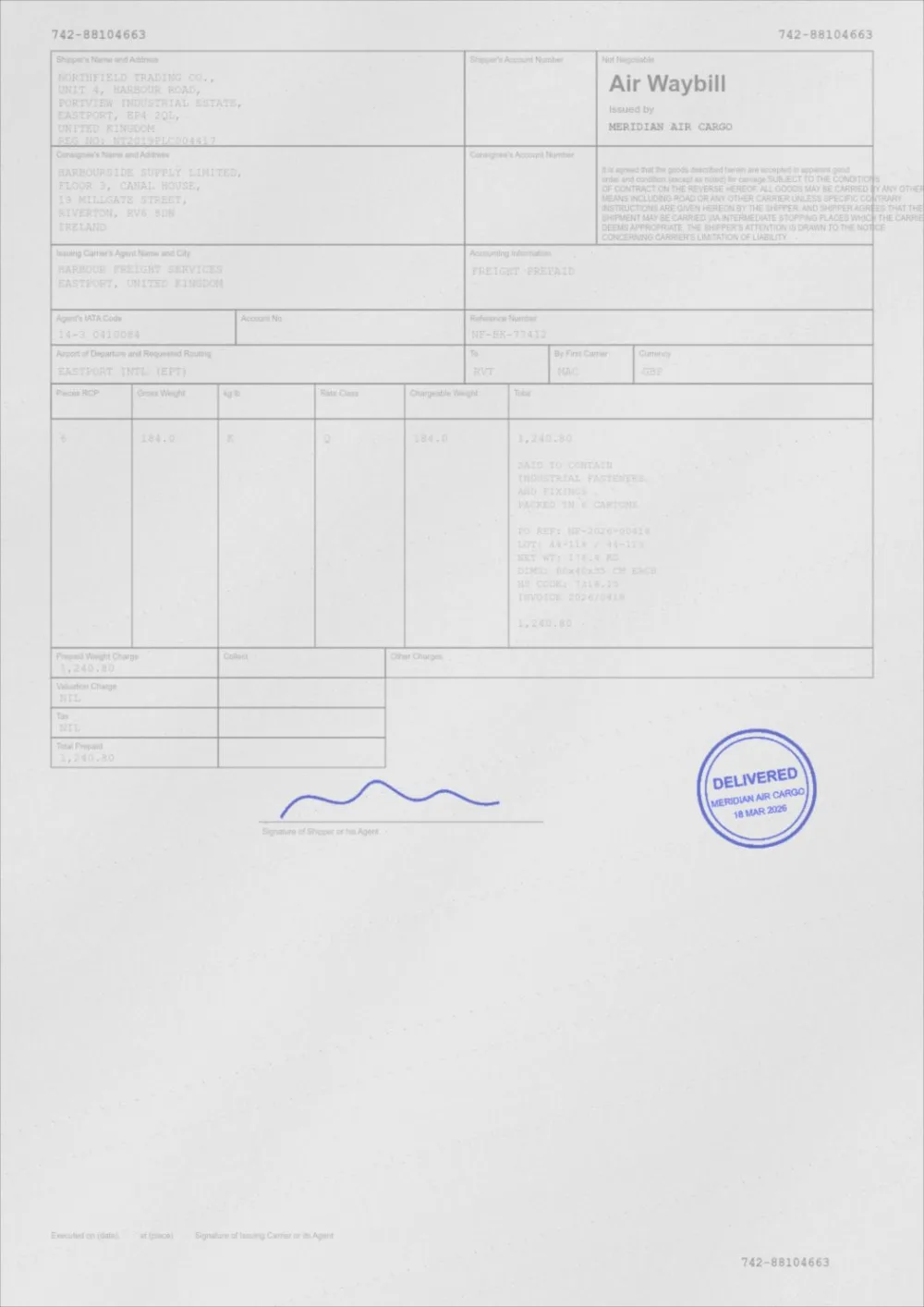 OriginalShadows removed
How to remove shadows from a scanned PDF
- Pick a strength above. Standard is selected to begin with.
- Choose your PDF, or drop it on the page. It is processed in your browser and never uploaded.
- Drag the slider to compare the original with the result. Look at the edge of the page where the shadow was.
- If shading remains, choose Full. If the paper still looks grey rather than white, raise Also whiten paper, then press Apply new settings.
- Download the new PDF. The original is left untouched.
How it works
The page is divided into a grid of small cells. In each cell, the brightest fifth of the pixels is taken as the local paper level, and the grid is smoothed twice so the estimate is a gentle surface rather than a map of the text. Each pixel is then multiplied by the ratio of the page-wide paper level to its local paper level.
The result is paper that sits at one even level across the page. It is not whitened, so a cream page stays cream and a grey page stays grey; that is a separate choice, and the Also whiten paper slider makes it if you want it.
Which shadows it can handle
- Smooth shadows and gradients, such as a phone casting its own shade or a bright centre with dark corners.
- Book-spine darkening, where the paper falls away into shadow near the gutter.
- Limit: the lighting estimate treats anything much darker than the paper as content rather than shadow. Shadows that darken the paper by about a third or less are corrected; deeper ones are only partly corrected.
- Sharp-edged shadows, such as a finger, a fold or the edge of another sheet, change too quickly for a smooth estimate and are only softened.
Large dark areas are protected
A filled table header, a stamp or a photograph is a large dark area, but it is not lighting. The estimate ignores anything below about 65% of the paper level, so these are not "corrected" into white. If a very large dark area still shifts, lower the strength.
Shadow removal and the rest of the cleanup
- To whiten the paper as well, use the second slider here, or whiten PDF background on its own.
- To clear dust and specks, use remove noise.
- To do all of it and darken the ink as well, use clean a scanned PDF.
If you can, rescan
Software repairs shadows after the fact. A better capture avoids them: diffuse light from the side instead of a lamp overhead, a flat page, and the camera parallel to the paper. For a book, a flatbed scanner pressed gently closed gives much more even lighting than a phone.
Questions
Does shadow removal whiten the page?
No. It evens out the lighting but leaves the paper at its own overall level. Raise Also whiten paper if you want pure white as well.
Will it darken or lighten my ink?
Each pixel is multiplied by the same local factor as the paper around it, so ink in a shadowed area is lifted along with the paper and ends up consistent with ink elsewhere. Ink in areas with no shadow is changed very little.
Can it remove the shadow of a finger or a fold?
Only partly. The estimate is deliberately smooth so that it cannot be confused by text, which means abrupt shadows are softened rather than removed.
My page is dark in one corner and the ink is faint there. Will that be fixed?
The lighting will be, and the ink in that corner is lifted with it. If the ink is still weak afterwards, the contrast enhancer widens the gap between ink and paper.
Will the text stay selectable?
On pages made only of text and vector graphics, yes, because they are not changed and have no scanned lighting to correct. A page that contains any picture, including a scan, is processed as an image, and its text becomes part of that image.
Is my PDF uploaded?
No. Reading, processing and writing the new file all happen inside your browser tab.
Guides on this topic
- How to Clean Up a Scanned PDFRemove grey backgrounds, speckle, shadows and show-through from scanned PDFs — and keep the faint content you actually wanted.
- How to Make a Scanned Document More ReadableReadability is more than contrast: resolution, sharpening, colour handling, OCR and accessibility all decide whether a scan is genuinely usable.
- Remove Shadows and Grey Background from a ScanA grey background, a shadow and speckle are different problems with different fixes. How to tell them apart, what order to fix them in, and how to capture better.
Related tools
- Whiten a PDF backgroundWhiten the background of a PDF online: turn grey or cream scanned paper white while the ink stays exactly as it was. Three strengths, preview, no signup.
- Clean up a scanned PDFClean scanned PDFs: whiten grey backgrounds, remove speckle and shadows, and even out uneven lighting from scanners and phone cameras.
- Enhance a scanned PDFEnhance a scanned PDF: it measures your scan first, then cleans grey backgrounds and speckle, darkens the ink and sharpens edges. Preview before you download.
- Remove noise from a scanned PDFRemove specks, dust and scanner noise from a scanned PDF: isolated dark dots on the paper are cleared while text and thin lines stay as they were.
Remove shadows from your scan
Free, no signup, no watermark. Your file stays on your device.
How it works · Features · Privacy
Upload scan to remove shadows