Make a scanned PDF darker
A scan is a photograph of a piece of paper, and it inherits every flaw of the moment it was taken: a faint original, a dirty platen, a document feeder in a hurry, or a phone camera fighting the ceiling light.
Scanned pages are pictures of text rather than text, so they are enhanced as images: measured, corrected for uneven illumination, re-toned and written back into a new PDF at 200 DPI.
Darken your scanned PDF
Works with flatbed scans, document-feeder scans and phone-camera scans.
- Upload
- Enhance
- Compare & download
or drop a PDF here — one file at a time, up to 50 MB and 100 pages
Free to try • No signup required • Your file never leaves your device
Advanced settings
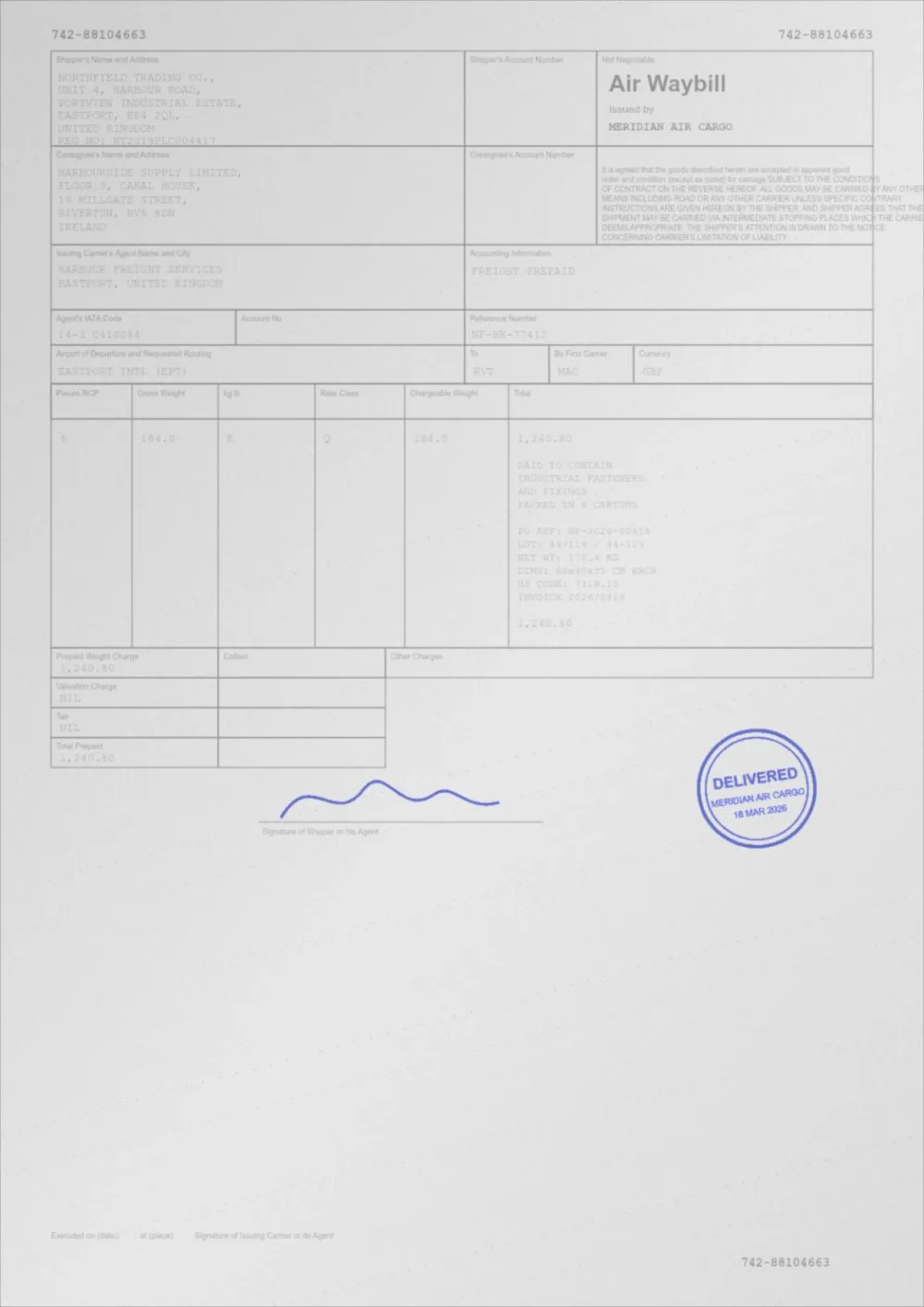
What Auto Print Enhance does to a faded page
A sample faded document, processed by the same engine in Auto Print Enhance mode. Drag the slider to compare.
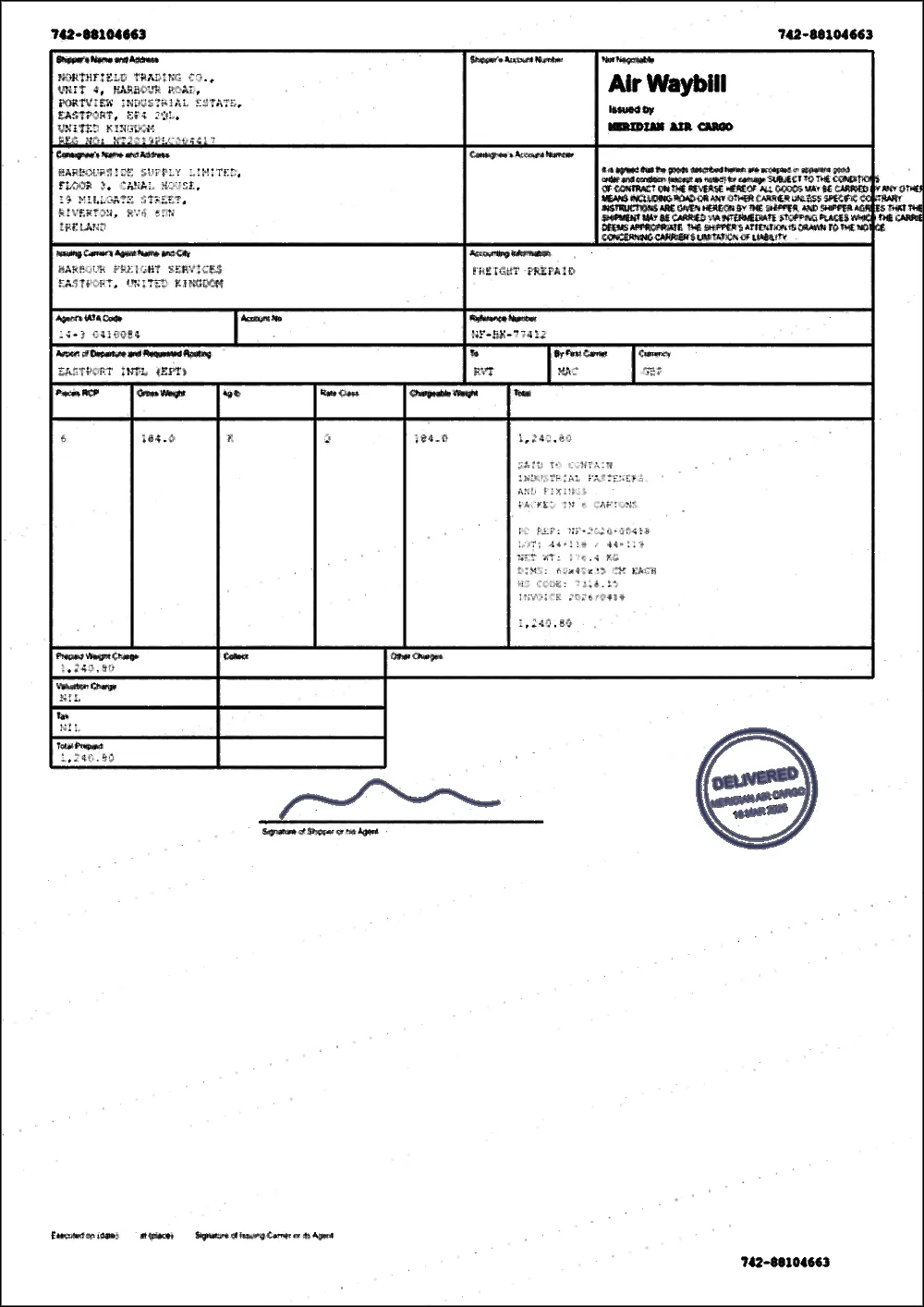 FadedEnhanced
Why scans come out faint
- The original was already faint — a carbon copy, a thermal receipt, a third-generation photocopy.
- The scanner exposed for the paper rather than the ink, which is the safe default and the reason so many scans look washed out.
- Automatic background removal was off, so the paper colour was captured as grey rather than dropped to white.
- A phone camera added its own shadow, so one corner of the page is noticeably darker than the other.
- The scan was saved as a low-quality JPEG, which softens edges before you ever open the file.
Uneven lighting is handled separately
A single global adjustment cannot fix a page that is bright in the middle and shadowed at the edges: whatever setting rescues the shadow blows out the middle.
Instead, the paper level is estimated across the page on a grid, smoothed, and used to normalise each region against its own local background. Shadows flatten out, the paper reads as one consistent white, and the ink keeps its relative darkness. That is the same idea a good scanner driver applies at capture time — applied after the fact.
If you can, rescan instead
Software can only work with what the scan captured. If the original document is still available, a better scan beats any amount of post-processing.
- Scan at 300 DPI for text. 600 DPI helps only for very small print.
- Choose Greyscale rather than Black & White for anything faint — thresholding at capture time throws detail away permanently.
- Turn on background removal or descreening if your scanner offers it.
- For phone scans, use diffuse light from the side, not a direct overhead lamp, and keep the phone parallel to the page.
Questions
Can it make text in a scanned PDF searchable?
Not on this page: it improves how a scan looks and prints, and it does not run OCR. OCR a scanned PDF does both: it cleans each page first, then reads the text and makes the PDF searchable.
My scan has a grey background. Will it turn white?
Usually yes. The Background slider controls how firmly paper is pushed towards white, and Clean Scan mode pushes it hardest. If light detail you wanted to keep disappears, lower that slider.
Will the file get bigger?
Scanned pages are re-rendered and re-compressed, so the output can be larger or smaller than the original depending on how the source was compressed. When every page is a scan, the enhanced pages are written into a brand new PDF so the original images are not carried along as dead weight.
Does it fix crooked pages?
No. The tool changes tone, not geometry, so a crooked page stays crooked. Straighten it in your scanner software or a dedicated deskew tool.
My scanner software made the writing light. How do I make it darker afterwards?
Upload the scanned PDF here. Each page is measured and its tones are stretched, so light writing is pulled towards black while the paper is pushed towards white. This works on a PDF from any scanner program, including ones with a document-scanning feature built in. If you can scan again, a 300 DPI greyscale scan with a darker or higher-contrast setting avoids the problem at source.
How do I scan yellow paper and get dark ink on white paper?
Scan in greyscale or colour, not black and white, then process the PDF. Use this page to darken the ink and whiten the PDF background to turn the yellow paper white. Doing both together is what Clean a scanned PDF is for.
Can I darken scan quality online without uploading my document?
Yes. The page works inside your browser tab, so the scanned file is read and rewritten on your device and never sent to a server.
Can I darken pen or pencil notes on a scan?
Yes. There are separate pages for handwriting and for signatures and stamps, with advice on pencil, ink colour and how far to push the slider.
Guides on this topic
- How to Darken a Scanned PDFScanned pages are images, not text. Here is what that changes, how to darken them properly, and when a rescan will beat any amount of processing.
- How to Make a Scanned Document More ReadableReadability is more than contrast: resolution, sharpening, colour handling, OCR and accessibility all decide whether a scan is genuinely usable.
- Why Does My PDF Look Faded?Four different things make a PDF look faded or light, and each needs a different fix. How to tell them apart in two minutes, and how to fix a light PDF.
Related tools
- Enhance a scanned PDFEnhance a scanned PDF: it measures your scan first, then cleans grey backgrounds and speckle, darkens the ink and sharpens edges. Preview before you download.
- Clean up a scanned PDFClean scanned PDFs: whiten grey backgrounds, remove speckle and shadows, and even out uneven lighting from scanners and phone cameras.
- Fix a faded PDFRestore faded PDFs and faint text. Bring back readability in old scans, thermal receipts, carbon copies and repeatedly photocopied documents.
- Darken handwriting in a PDFMake handwriting in a PDF darker: faint pen, pencil notes and filled-in forms on scans. Runs in your browser, free, no signup, and the original is kept.
- Darken a signature in a PDFMake a faint signature or stamp in a PDF darker so it shows when printed. Works on scans and photos, keeps ink colour, free, in your browser, no signup.
- Whiten a PDF backgroundWhiten the background of a PDF online: turn grey or cream scanned paper white while the ink stays exactly as it was. Three strengths, preview, no signup.
Darken your scanned PDF
Free, no signup, no watermark. Your file stays on your device.
How it works · Features · Privacy
Upload scanned PDF