Make a PDF print ready
"Print ready" means the document will come off the tray looking the way you expect on the first attempt: text solid, background clean, small type still legible.
Most files fail that test for tonal reasons rather than layout reasons, which is what the Print Ready preset addresses. The checklist below covers the rest.
Prepare your PDF for print
Print Ready mode: darker text, cleaner paper, sharper edges.
- Upload
- Enhance
- Compare & download
or drop a PDF here — one file at a time, up to 50 MB and 100 pages
Free to try • No signup required • Your file never leaves your device
Advanced settings
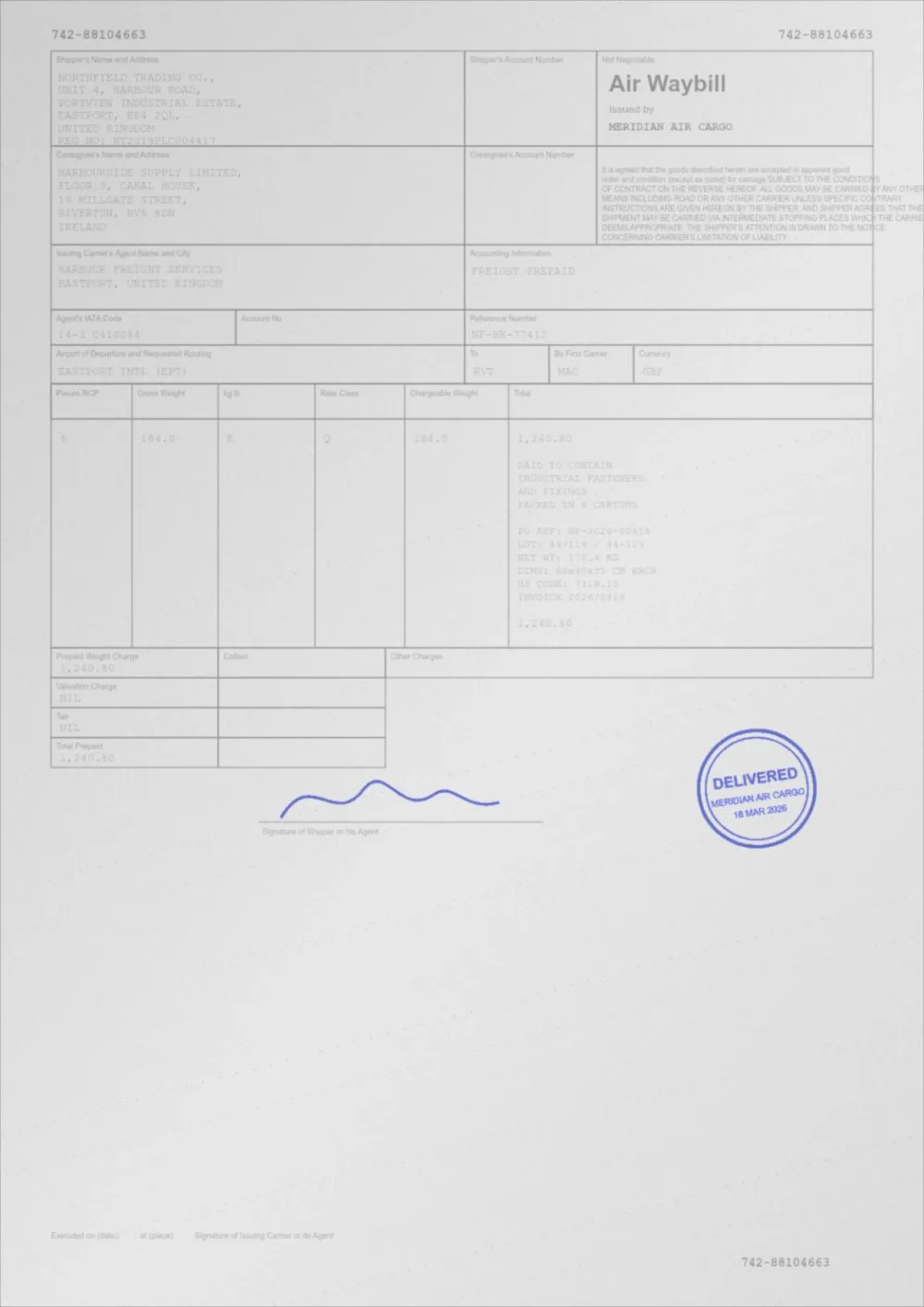
What Print Ready does to a faded page
A sample faded document, processed by the same engine in Print Ready mode. Drag the slider to compare.
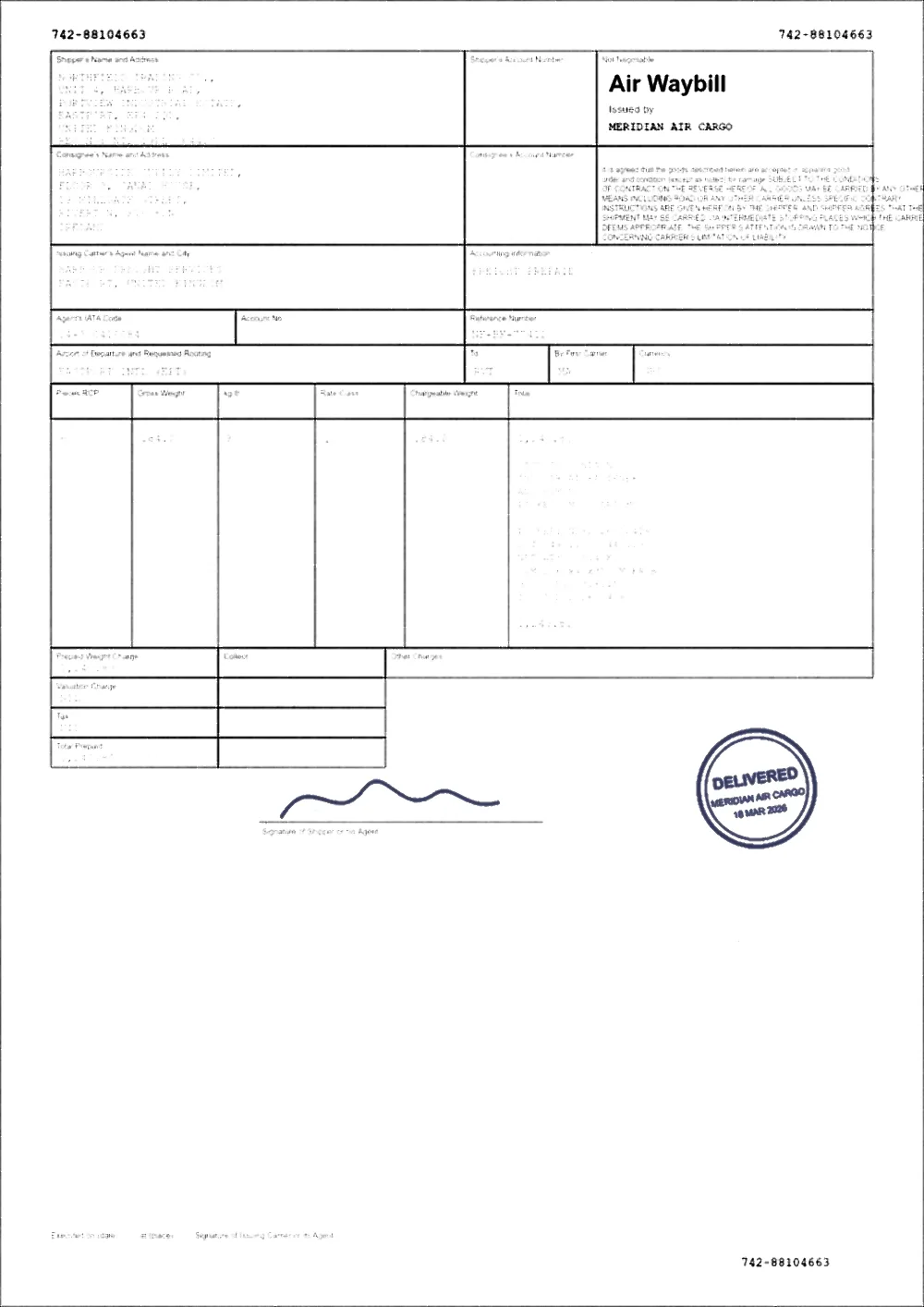 FadedPrint ready
A print-readiness checklist
- Contrast: is the darkest text genuinely dark, or is it a mid-grey? This is what the tool fixes.
- Background: is the paper white, or is there a grey or beige cast that will be printed faithfully?
- Small type: does anything below 8pt survive? Print one page and look before committing.
- Colour: will this be printed in mono? If so, check that coloured text does not turn into indistinguishable greys.
- Page size: does the document size match the paper you are printing on, or will it be scaled?
- Margins: is anything closer than about 5 mm to the edge, where most printers cannot reach?
Printing in mono from a colour document
A mono printer converts colour to grey using luminance, and colours that look very different can land on almost the same grey. Mid-blue and mid-red are the classic pair: obvious on screen, nearly identical in print.
If the document uses colour to carry meaning — a legend, a highlighted row, a status column — check the greyscale result before you print a hundred copies. Convert a PDF to grayscale to see what a mono printer will do with it.
Keep the file efficient
A print-ready file should not be a 200 MB monster. Pages made only of text and vector graphics are never rasterised here, so they stay small and sharp at any zoom. A page that contains any picture, including a logo, is rendered as an image instead.
When every page is a scan, the enhanced pages are written into a brand new PDF rather than being layered on top of the original images, which keeps the output roughly the size of the content it actually contains.
Questions
Does this change page size, bleed or margins?
Page size, orientation and margins are preserved. On pages that are rendered as images, crop and bleed boxes are replaced by the visible page area, so do not use this on files that rely on bleed.
Is this suitable for a commercial print shop?
For everyday documents, yes. For professional press work with spot colours, ICC-managed CMYK or bleed requirements, talk to the printer first — this tool is built for office and home printing, and it converts colour through RGB.
Should I use Black & White mode for a print shop?
Only for pure line art or plain text where you want strictly two tones. It discards every mid-tone, which is a poor choice for anything with photographs, shading or signatures. See black & white PDF.
Guides on this topic
- How to Make a PDF Print ClearlyThe whole print chain: file tone, page scaling, driver settings, paper and fonts — and which of them actually decides how clear the result is.
- How to Make a PDF Darker for PrintingA step-by-step walkthrough: darken a PDF, check the result on one page, and set your printer up so the improvement survives the trip to paper.
- How to Prepare a PDF for PrintingA practical checklist for getting a clean print: page size and scaling, margins, text darkness, background, colour or greyscale, image resolution, and a test page.
Related tools
- Darken a PDF for printingMake a PDF darker before you print it. Stronger text, cleaner background and better contrast for laser and inkjet printers. Free, in your browser.
- PDF print optimizerMeasure your PDF, see what will print faint or grey, and apply recommended settings in one click. Free, private, in your browser.
- PDF prints too lightYour PDF looks fine on screen but prints faint. Find out whether the file or the printer is at fault, then darken the file in your browser.
- Clean up a scanned PDFClean scanned PDFs: whiten grey backgrounds, remove speckle and shadows, and even out uneven lighting from scanners and phone cameras.
Prepare your PDF for print
Free, no signup, no watermark. Your file stays on your device.
How it works · Features · Privacy
Upload PDF to prepare